
Payments
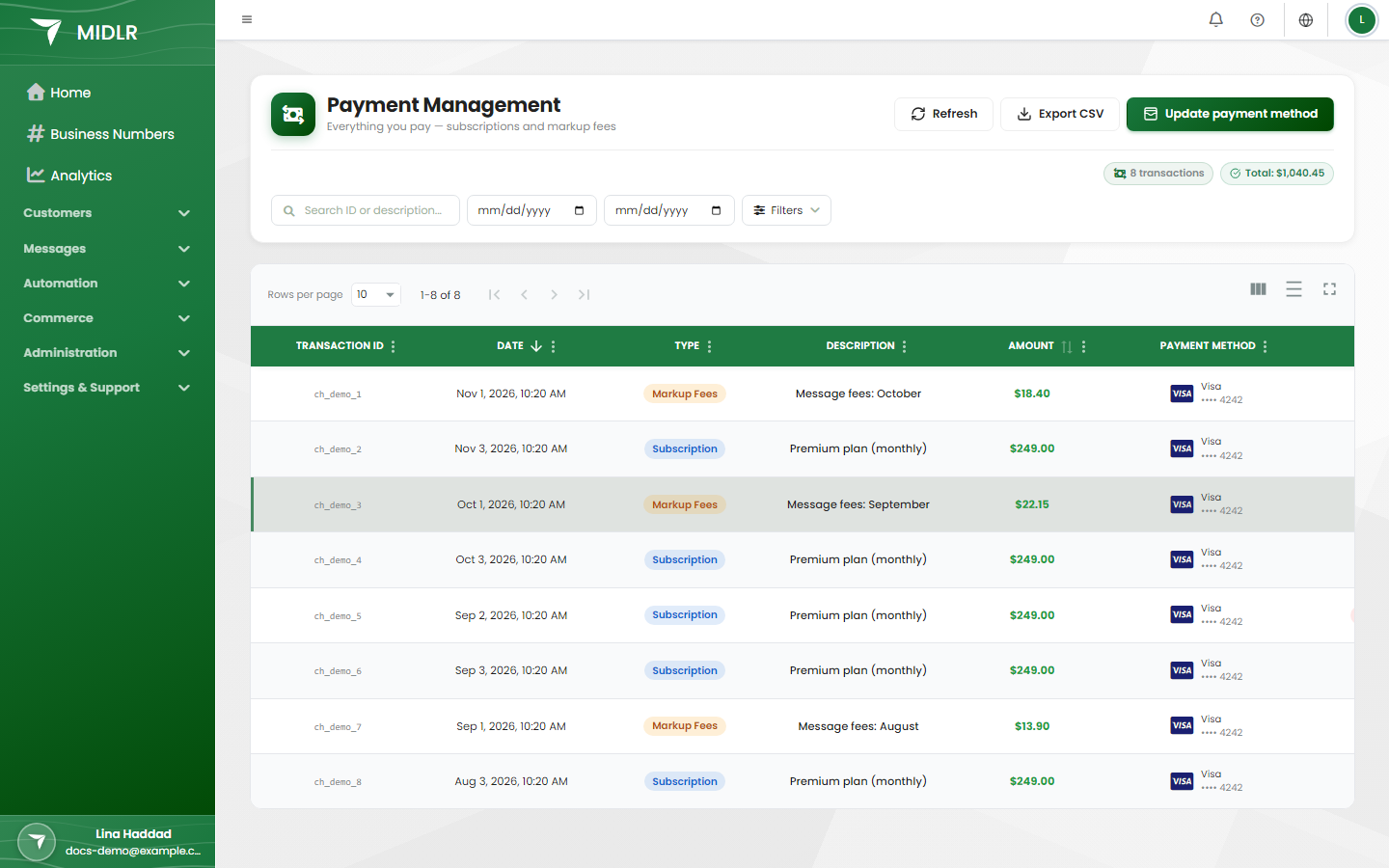
The Payments page lists everything your business pays Midlr in one place: your plan, the markup fees on WhatsApp template messages, and any other payments. Use it to download invoices and receipts, see what a charge was for, and update your card.
Before you start
- You need permission to view payments. See Roles & permissions.
- This page is available on selected plans. If you don't see Payments in your sidebar, contact support.
Open the Payments page
In the sidebar, open Administration and click Payments. The page is called Payment Management.
At the top you see the number of transactions, the Total you've paid, and, if you have any, your Pending markup fees.
Kinds of charge
Each payment has a Type:
| Type | What it is |
|---|---|
| Subscription | The price of your Midlr plan, charged each month or each year. See Plans. |
| Markup Fees | Midlr's fee on WhatsApp template messages you send, for example in campaigns. It's counted for each template message that reaches the customer. |
| Other | Any other payment you made to Midlr, for example AI wallet top-ups. These show as "AI wallet top-up" or, when the wallet tops itself up, "AI wallet automatic top-up". |
About markup fees
When you send a template message, Midlr adds a small fee for each message that is delivered. The fee depends on the country of the customer you're messaging and the kind of template. Regular replies inside an open chat don't add markup fees.
Meta's own charge for each message is separate: Meta bills it to the payment method on your WhatsApp Business Account, and it doesn't appear on this page.
Markup fees add up during the month and are charged to your card automatically at the start of each month. Small amounts wait until they reach a minimum, which the page shows.
If your plan isn't charged markup fees (for example during the free demo), the page says Your plan isn't charged markup fees.
See your pending markup fees
- Click the Pending markup fees chip at the top of the page.
- You see what the fees are for, grouped by Campaign and Individual messages, with the number of messages and the amount for each.
Pay pending fees now
You don't have to wait for the monthly charge. In the pending fees window, click Pay … now. The fees are charged to the card on file.
If your bank takes time to confirm, you see "Your payment is being processed" and the payment shows as paid once the bank confirms.
Find a payment
Use the filters above the table:
- Status: Paid, Processing, Failed or Canceled.
- Type: Subscription, Markup Fees or Other.
- Date From and Date To.
- Min Amount and Max Amount.
- Search: by transaction ID or description.
Click Clear filters to start again, or Refresh to load the latest payments.
See what a payment was for
In the Actions column:
- Details: for markup fee payments, shows which campaigns and messages the payment covered.
- Invoice: opens the invoice (mostly for subscription payments).
- Receipt: opens the payment receipt.
If a payment was partly or fully refunded, the amount column shows Refunded: and how much.
Export your payments
Click Export CSV to download the payments that match your current filters as a spreadsheet file, for example to send to your accountant.
Update your card
- Click Update payment method.
- You're taken to a secure Stripe page. Add or change your card there.
- When you come back, you see Your payment method was updated successfully.
The button only works after your first payment, because that's when your billing account is created.
WARNING
If a monthly charge fails, check your card here. Make sure there's a valid card on file before the start of the month so markup fees and your plan can be charged. Markup fees that couldn't be charged aren't dropped: they're charged the next month, together with that month's fees.