
Connect your WhatsApp number
To chat with customers in Midlr, you connect a WhatsApp business number. You do this once, through a short sign-up window from Facebook (Meta). After that, all messages to and from that number show up in Midlr.
If you are new to WhatsApp for business, read WhatsApp basics first.
Before you start
Make sure you have:
- A Business Portfolio in Meta Business Manager (business.facebook.com). This is Meta's name for your company account.
- A Facebook account with full admin access to that Business Portfolio.
- A phone number that can receive an SMS or a phone call. Landlines need the phone call option.
- Permission to add business numbers in Midlr. If you don't see the add button, ask your admin. See Roles & permissions.
WARNING
If you are reconnecting, you must pick the same Business Portfolio and WhatsApp Business Account you used before. Picking a different one is rejected.
Consider Business Verification first
Meta's Business Verification is a check that your business is real. You do it in Meta Business Manager, not in Midlr. It is not required to connect a number, but it unlocks a lot:
- Your business name is shown to customers in chats, instead of only your phone number.
- Access to WhatsApp calling.
- A higher messaging limit (how many customers you can start conversations with each day). See Messaging limits & quality.
- It is a required step before you can apply for the blue verified badge.
You can do Business Verification at any time, before or after you connect your number.
Choose your path
Midlr supports three ways to connect a number. Pick the one that matches your situation.
| Your situation | Path | What happens |
|---|---|---|
| You have never connected WhatsApp to Midlr before. | A. First time | You create a new WhatsApp Business Account and register a fresh number. |
| You already connected a number, and want to add another one. | B. Add another number | You keep your existing WhatsApp Business Account and add the new number inside it. |
| You use the WhatsApp Business app on your phone and want to bring that number to Midlr. | C. Move a number from the WhatsApp Business app | You connect your existing app number and choose whether to share your past chats. |
Things to know about path C (WhatsApp Business app)
- A number from the WhatsApp Business app must be in its own WhatsApp Business Account. It can't share an account with other numbers. If you already have a number connected to Midlr, you first need to delete that number and disconnect your account. See Manage your numbers.
- We strongly recommend that your Business Portfolio is already verified before you do this. Moving a number through an unverified portfolio makes it more likely that Meta restricts it afterwards.
- If the number was ever restricted on WhatsApp Business, it has a high risk of being restricted again. In that case, it is safer to delete the WhatsApp account on your phone first, and then connect the number with path A as a fresh number.
- You keep using the WhatsApp Business app on your phone. After connecting, you can still chat one-to-one from the app, and messages stay in sync between the app and Midlr. Your customers see no change: same number, same business name.
Connect your number
In the sidebar, click Business Numbers.
Click the button to add a number:
- If you have no numbers yet, click Add Business Number or Continue with Facebook.
- If you already have numbers, click Add Phone Number.
A Register New Number window opens with a short walkthrough. Read each screen and click Next. Click Skip walkthrough if you already know the steps.
On Which path are you on?, pick A, B or C (see above). Some paths are greyed out if they don't fit your account.
Click Continue with Facebook. A Facebook window opens.
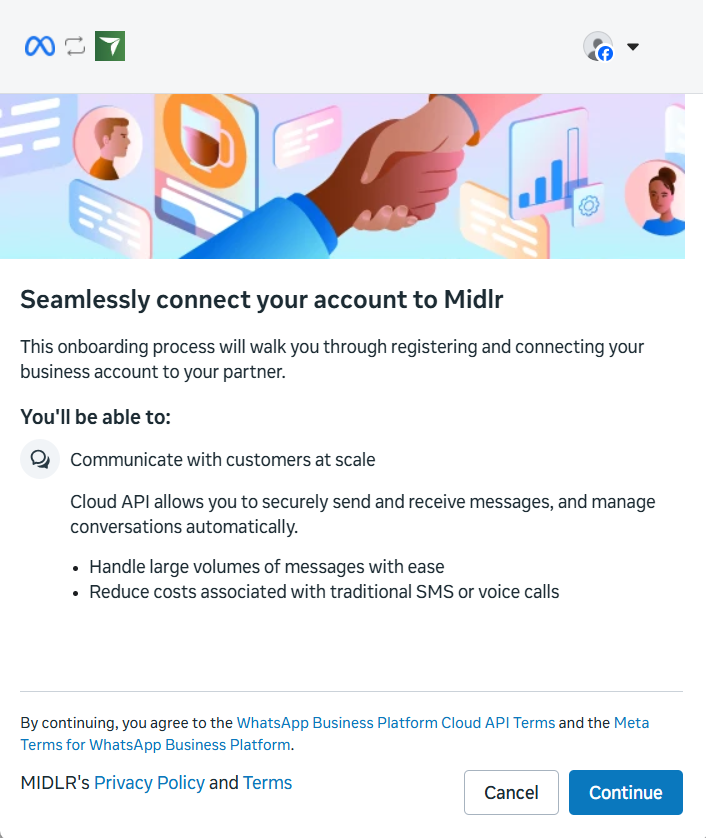
Log in to Facebook if it asks. The first screen is Seamlessly connect your account to Midlr. Click Continue, then follow the screens. The sections below explain the tricky questions.
On the last Facebook screen, Review what you'll share, click Confirm. Keep all permissions ticked. If you untick any, messaging, contacts or analytics will not work.
When you see Your account is connected, click Finish. The Facebook window closes.
Back in Midlr, wait while it says Processing... Then you see Success, and the page reloads.
Your new number now appears on the Business Numbers page. When its status is Configured, you can send and receive messages.
Path B: pick your existing account
When you add a second number, Facebook shows your existing WhatsApp Business Account in a dropdown.
- On Select the business assets to share, leave your existing WhatsApp Business Account selected. Don't pick Create a WhatsApp Business account or any other account. Those are rejected.
- On Add your WhatsApp phone number, choose Use a new or existing WhatsApp number. Then in the phone number dropdown pick Add a new WhatsApp number at the top, not one of the numbers listed below it.
Paths A and B: choose how to set up the phone number
Facebook offers two options:
| Option | When to use it |
|---|---|
| Add a new number (recommended) | You have a real phone number to use. Meta sends a code by SMS (fastest, for mobiles) or by Phone call (needed for landlines). You can send messages as soon as setup finishes. |
| Use a display name only | Meta gives you a free US phone number, and customers only see your business name. You need Business Verification first. Meta then reviews your business and display name, which takes about one working day. You can't use the number until Meta approves the display name. |
For most businesses, Add a new number is the right choice.
Path C: enter your app number and choose about chat history
- Facebook asks for the number you use in the WhatsApp Business app. Pick the right country code and type the number exactly as it is in the app.
- If the number isn't already in your Business Portfolio, Meta sends a code as a message to the WhatsApp Business app on your phone. Enter that code.
- Facebook asks whether to share your past chats:
- Share chats: up to 6 months of one-to-one chats are copied into Midlr. Group chats are never shared.
- Don't share chats: your old messages stay only on your phone. Midlr starts with new chats only.
WARNING
The chat history choice can't be changed later, not even by reconnecting.
After you connect
- Add a payment method in Meta Business Manager so you can send templates to start conversations (for example, campaigns). See WhatsApp basics.
- Complete Business Verification in Meta Business Manager to raise your messaging limit and show your business name.
- Set up your business profile: description, address, picture and more. See Business profile.
If something goes wrong
If the Facebook window closes before it finishes, nothing is saved in Midlr. Click Continue with Facebook again to retry, and pick the same Business Portfolio and WhatsApp Business Account as before.
| Message in Midlr | What it means | What to do |
|---|---|---|
| Cancelled | You closed the Facebook window. | Start again. |
| Not Completed | The sign-up didn't finish. | Start again and go through every Facebook screen. |
| Incomplete Sign-up | You picked a WhatsApp Business Account but didn't add a phone number. | Start again and add a phone number. |
| Missing Information | Facebook finished but didn't send the number details. | Start again. |
| Still connecting | It is taking longer than usual. Your number may still connect in the background. | Wait for the page to reload. If the number isn't listed after a few minutes, connect again. |
| Error with a message | Meta or Midlr refused the connection, for example because you picked a different Business Portfolio than before. | Read the message, fix the cause and try again. If you're stuck, open a support ticket. |
The add button is greyed out
- Max numbers reached: your plan allows a set number of business numbers (1 on Starter, 2 on Growth, 5 on Premium) and you've reached it. See Plans, or delete a number you don't use.
- No permission to add numbers.: your role doesn't allow adding numbers. Ask your admin.