
Create your account
To use Midlr, you first create an account for your business. The person who signs up becomes the first user of the business and can invite the rest of the team later.
Before you start
- An email address you can log in with.
- A mobile phone number with WhatsApp on it. Midlr sends a verification code to this number on WhatsApp.
Sign up
- Go to midlr.net. On the login page, click Create a new account?
- Fill in the form:
- First Name and Last Name
- Company Name (required)
- Website (optional)
- Email Address (required). You log in with this.
- Phone Number (required). Pick your country and type your number. Use the number that has WhatsApp.
- Password and Confirm Password. The password must be at least 8 characters.
- Tick I agree to the terms and privacy policy. You can open the privacy policy link to read it first.
- Click Register.
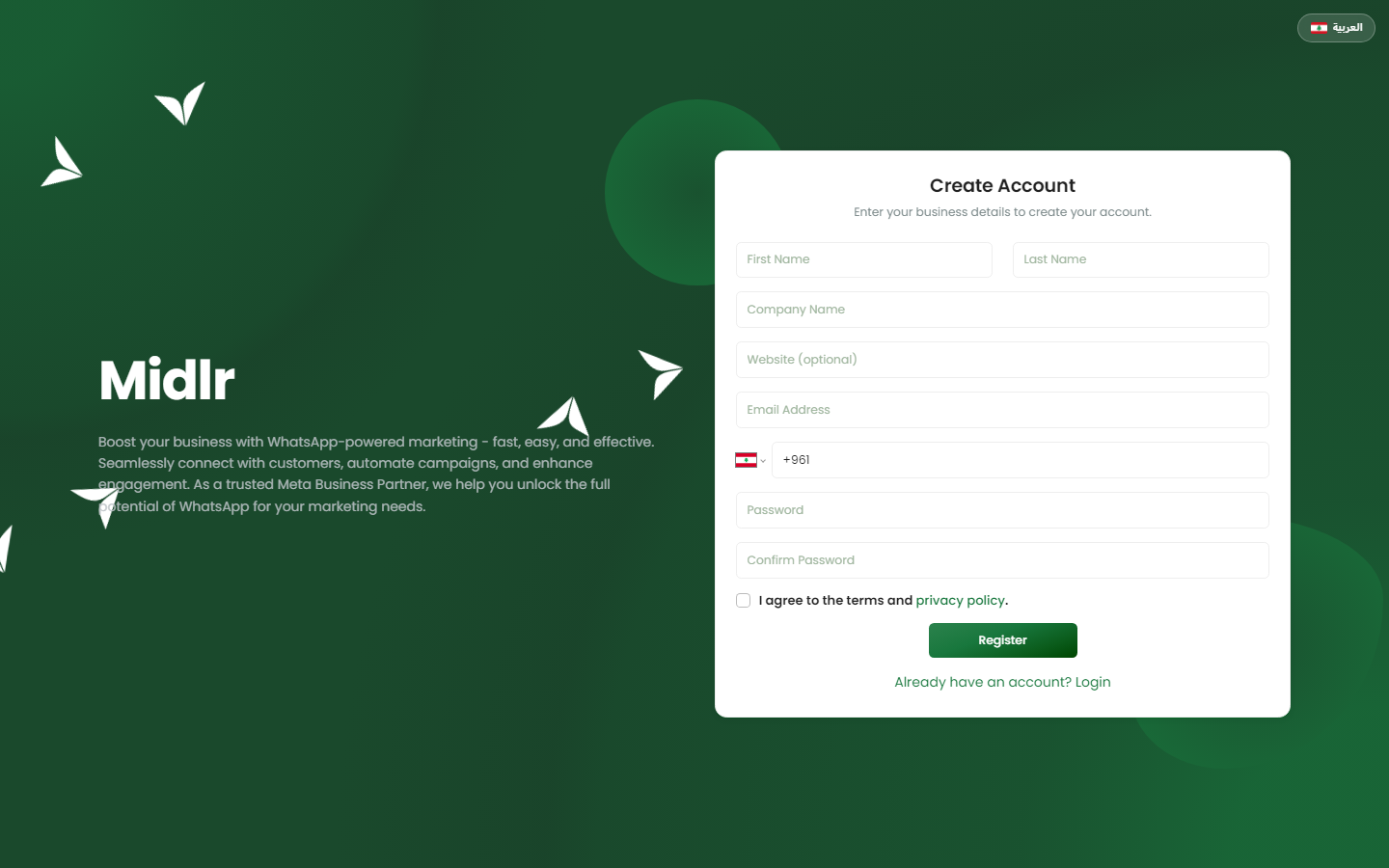
If you already have an account, click Already have an account? Login instead.
Verify your phone number
Right after you register, Midlr asks you to verify your phone number. You see a page that says Verification required.
- Open WhatsApp on your phone. Midlr has sent you a message with a 6-digit code.
- Type the code in the box and click Verify.
- When you see You're verified, Midlr takes you to your Home page.
The code expires after 5 minutes.
If the code doesn't arrive
- Wait a moment, then click Resend code. The button is available again after a short countdown.
- If you typed the wrong number, click Use a different number. Type your number with the country code, for example
+96171234567, then click Update & send code. - If WhatsApp can't deliver the code, Midlr shows Couldn't deliver the code. Click Use a different number and try a number that has WhatsApp.
TIP
You must verify your phone before you can use the rest of Midlr. This only applies to the person who created the business account.
Verifying your number later
Other users may see a banner on their Home page that says Add your WhatsApp number to receive important account notifications or asks them to verify their number. Click Add number or Verify now to do it, or Dismiss to hide the banner.
Your Home page
The Home page is your starting point. Click Home at the top of the sidebar to come back to it at any time. Depending on your plan and permissions, it shows:
- Getting started: your setup steps (see below).
- What's new: news about Midlr and about WhatsApp from Meta.
- Today at a glance: messages received and sent today, active chats and new contacts. Click Full stats for more.
- Last 7 days: messages, chats Awaiting reply, conversations, contacts and campaigns sent.
- Your plan: your current plan and how many days are left.
- Today's agenda: lead activities that are due or overdue.
- Get the MIDLR App: links to the mobile app. See Mobile app.
If your plan is about to end, or you're on a demo, a message at the top of the page tells you and links to Plans.
Complete the Get Started steps
New accounts see a Getting started card on the Home page with five steps. It shows how many you have done, for example 2 of 5 steps done. Click a step to open it.
The first two steps let you try WhatsApp messaging before you connect your own number. They use Midlr's own WhatsApp number to send a test message to you.
Step 1: Send your first message
This sends a test template to your phone, so you can see what your customers will see.
- Open Send your first message.
- Under Recipient, your name and the number you verified are filled in. To send to someone else, remove the recipient, then click + ADD RECIPIENT, enter a Recipient Name and a Recipient Phone Number with the country code, and click Set as Recipient.
- Check the Preview.
- Click SEND MESSAGE.
The message arrives on WhatsApp from Midlr's number. It has a Start Chatting button. Tap it on your phone to try a chatbot.
Step 2: Check delivery report
Open Check delivery report to see the Delivery Report for your test message: whether it was sent, delivered and read. Click Mark as Done when you're finished.
Step 3: Register your WhatsApp account
This is where you connect your own WhatsApp business number. Click Get Started to go to the Business Numbers page. Follow Connect your WhatsApp number. This step is ticked automatically once your number is connected.
Step 4: Setup your WhatsApp Business profile
Add your business description, address, email, website and profile picture. Click Setup your Profile to open your number's profile. This button only works once your number is connected. When you're done, click Mark as Done. See Business profile.
Step 5: Add funds to your account
To start conversations with templates, Meta needs a payment method on your account. Click Add Funds to Meta. This opens the billing page in Meta Business Manager, where you add a payment method. See WhatsApp basics.
TIP
Already set everything up? Click Mark all as done to close the checklist. You can also collapse the card by clicking its title.
Forgot your password?
- On the login page, click Forgot Password?
- Enter your email and click Continue.
- Choose how to get the reset: Send a code to WhatsApp, or Email me a reset link instead.
- If you chose WhatsApp, enter the 6-digit code and click Verify. Then type a new password twice and click Update password.
- If you chose email, open the link in the email. Check your spam folder if it doesn't arrive.
After you change your password, Midlr signs you out on your other devices.