
Templates
A template is a message you write once, get approved by WhatsApp, and then send again and again. You need a template to start a conversation with a customer, to message them after the 24-hour window has closed, and to send campaigns.
Before you start
- You need a connected business number.
- You need permission to view or create templates. If you don't see Templates in your sidebar, ask your admin. See Roles & permissions.
Find your templates
In the sidebar, under Messages, click Templates.
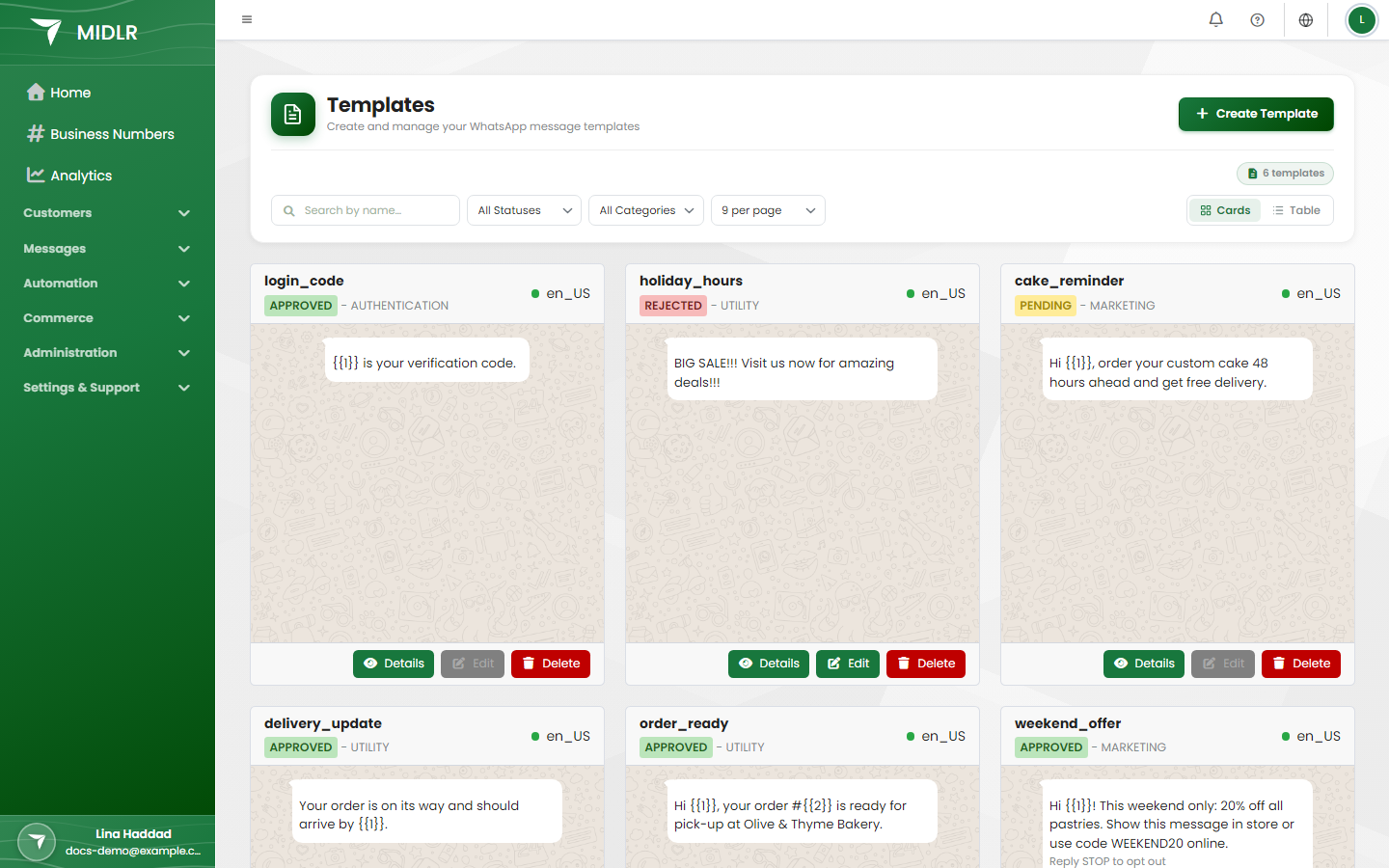
The page lists every template on your WhatsApp account. You can:
- Search by name with Search by name….
- Filter by status (Pending, Approved, Rejected) and by category (Utility, Marketing).
- Switch between Cards and Table view.
Each card has three buttons: Details, Edit and Delete.
Template categories
WhatsApp puts every template in a category. The category decides how WhatsApp reviews and charges the message, so pick the one that matches what the message really does.
| Category | Use it for | Examples |
|---|---|---|
| Marketing | Promotions, offers, news, invitations | "20% off this weekend", "New collection is in" |
| Utility | Updates about something the customer already asked for or bought | Order confirmed, appointment reminder, delivery update |
| Authentication | One-time passcodes (OTP) for logging in or verifying | "Your code is 123456" |
WARNING
If you pick Utility for a message that is really promotional, WhatsApp can reject the template or change its category to Marketing.
Midlr shows the category WhatsApp gives a template when you create it. If WhatsApp changes the category later, Midlr doesn't show the change. To check a template's current category, look it up in Meta's WhatsApp Manager.
Create a template
Click Create Template.
In the New Template window, pick a type:
- New Standard Template: text or media header, body, footer and buttons. Most templates are this type.
- New Carousel Template: up to 10 cards that the customer swipes through, each with its own picture or video and buttons.
- New Authentication Template: a one-time passcode message with a copy-code button.
Or scroll to Or start from the library and pick a ready-made template (see Start from the Template Library).
Fill in the Configuration section (below).
Build the message. The Message Preview on the right shows how it will look on the customer's phone.
Click Create Template.
Midlr sends the template to WhatsApp for review straight away. It appears in your list as Pending.
TIP
If you reload the page by accident, Midlr brings back your unsaved changes (Unsaved changes restored). You need to upload any media again.
Configuration
- Template Name: lowercase letters, numbers and underscores only, starting with a letter. For example
order_confirmed. Customers never see this name. - Language: the language the message is written in. You can create the same template name in several languages.
- Category: Marketing or Utility. Carousel templates are always Marketing, and authentication templates are always Authentication.
You can't reuse a name in the same language. If you try, you see "A template with this name and language already exists".
Standard template: choose a type
A standard template has a Type:
| Type | What it does |
|---|---|
| Custom | Your own header, body and buttons. |
| Catalog | Shows your product catalog. It has no header and always gets a View catalog button. See Catalogs. |
| Call Request | Asks the customer for permission to call them on WhatsApp. Only shown if calling is available for your business. See Calls. |
| Flow | Opens a WhatsApp form. Marketing only. See Forms. |
| Limited-time offer | An offer banner with an optional countdown, an offer code and a link. Marketing only. |
Header (optional)
Pick a Header Type:
| Header | Limits |
|---|---|
| None | No header. |
| Text | Up to 60 characters. Can have one variable. |
| Image | JPG or PNG, up to 5 MB. |
| Video | MP4 or 3GP, up to 16 MB. |
| Document | PDF, Word, Excel, PowerPoint or TXT, up to 100 MB. |
| Location | A map pin above the message. Search for a place or click the map to set it. |
Media headers are not available while your media storage is full. See Media library.
Body
The Body is the main text of the message, up to 1,024 characters. You can use bold, italics and other WhatsApp formatting.
Footer (optional)
The Footer (Optional) is a short grey line under the message, up to 60 characters. Limited-time offer templates can't have a footer.
Variables
Variables are placeholders that change for each customer, such as their name or an order number. They appear as 1, 2 and so on.
- Put your cursor where the value should go and click Add Variable.
- Type an example value in the box that appears. The example is required: WhatsApp's reviewers use it to understand your message.
Limits: one variable in the header, and up to five in the body.
When you send the template later (from a chat, a campaign or a schedule), you fill in the real value for each variable.
TIP
Don't start or end the body with a variable, and put real words around each one. Messages that are mostly variables are often rejected.
Buttons
Click Add Button and pick a type. You can add up to 10 buttons in total.
| Button | What it does | Limit |
|---|---|---|
| URL Button | Opens a website. The link can end with one variable, so each customer gets their own link. | 2 |
| Phone Button | Calls a phone number. | 1 |
| Voice Call | Starts a WhatsApp call to your business number. Only shown if calling is available. You can't have both this and a Phone Button. | 1 |
| Quick Reply | Sends a short reply back to you when tapped, such as "Yes, I'm interested". | 10 |
| Opt-out Button | Adds a Stop promotions button so customers can stop receiving marketing. | 1 |
| Flow Button | Opens one of your published forms. Marketing only. | 1 |
| Copy offer code | Lets the customer copy a coupon code. Marketing only. | 1 |
WARNING
Adding an Opt-out Button to marketing templates is highly recommended. Customers who can't easily stop your messages are more likely to block or report your number, which can get your number restricted. See Messaging limits & quality.
When a customer taps Stop promotions, Midlr marks them as unsubscribed. You can see this in the Subscribed column of a campaign report. If they message you again later, they are marked as subscribed again.
While a customer is unsubscribed, campaigns skip them automatically.
Carousel templates
A carousel is a short message (the Bubble Text) followed by up to 10 cards the customer can swipe.
- Pick the Header Type for all cards: Image or Video.
- Under Button Types, pick one or two buttons every card will have: Quick Reply, Visit Website or Phone number.
- Click Add Card and, for each card, choose its picture or video (image up to 5 MB, video up to 16 MB), write the Card Description, and fill in the buttons.
You can't change the header type or button types after you add the first card. Carousel templates need free media storage.
Authentication templates
Authentication templates send a one-time passcode. WhatsApp writes the text for you, so you pick from a fixed set.
- Choose the Authentication Code Type:
- Copy Code: the customer copies the code by hand.
- One Tap or Zero Tap: the code fills in automatically in your Android app. These need your app's Package Name and Signature Hash (ask your app developer).
- Under Select Template From Library, pick the wording.
- Optionally add a Footer that says when the code expires.
Authentication templates can't have media or extra buttons.
Start from the Template Library
The Template Library has ready-made templates written by WhatsApp. They are often approved faster because the wording is already accepted.
- Click Template Library.
- Search or filter by use case and industry. Click Preview Details to see one in full.
- Click Create Template (or Clone in the preview).
- Give it a Template Name, fill in any button values, and click Create Template.
You can also pick a library template from the New Template window, then click Use This Template to open it in the editor and change it before creating it.
Template statuses
After you create a template, WhatsApp reviews it. The status updates on its own, without reloading the page.
| Status | What it means | What you can do |
|---|---|---|
| Pending | WhatsApp is reviewing it. | Wait. You can't send or edit it yet. |
| Approved | Ready to use. | Send it from chats, campaigns, schedules and bots. |
| Rejected | WhatsApp did not accept it. | Fix the wording and edit it, or create a new one. |
| Paused | WhatsApp paused it because customers reacted badly (for example, many blocks). | Wait for it to resume, or improve the content. |
| Disabled | WhatsApp turned it off, usually after repeated quality problems. | Create a new template. |
| In appeal | You asked WhatsApp to look at a rejection again. | Wait for the result. |
Only Approved templates can be sent. In a campaign, other templates show "This template can't be used for campaigns yet — only approved templates can be sent."
Midlr shows that a template was Rejected, but not WhatsApp's reason. To see the reason, open the template in Meta's WhatsApp Manager. The common reasons are listed below.
Why templates get rejected
WhatsApp reviews every template against its own rules. Common reasons:
- Wrong category. A promotion marked as Utility.
- Variables in the wrong place. The body starts or ends with a variable, the variables skip a number (
1then3), or the message is almost all variables. - Missing or poor example values. Reviewers can't tell what will be sent.
- Unclear or misleading content, or content that breaks WhatsApp's commerce and business policies.
- The same wording as an existing template in the same language.
Midlr checks some of these for you while you build the template and shows a message, such as "The text can't start with a variable. Put a word before it."
Edit a template
- On the template's card, click Edit.
- Change the content. You can't change the Template Name or Language, and you can't change the Category of an approved template.
- Click Update Template.
The edited template goes back to WhatsApp for review.
The Edit button is greyed out when:
- The template is Pending.
- It is a carousel or authentication template. To change these, create a new template.
- It was edited less than 24 hours ago. The card shows when it was last edited.
See how a template performs
Click Details on a template's card. Pick a date range to see:
- Total Sent, Delivered, Read, Replies and Failed counts.
- Unique Recipients: how many different customers got it.
- Total Cost for messages sent with it.
- Button Clicks: which buttons customers tapped.
- Delivery Funnel: how many messages were sent, then delivered, then read, then clicked.
- Error Messages: the most common reasons messages failed.
- Insights & Recommendations: the best day and peak hour for this template.
Delete a template
- On the template's card, click Delete.
- Confirm.
The template is deleted from your WhatsApp account too, and this can't be undone. You can't delete a template that has already been sent to customers; Midlr shows "Template is in use and cannot be deleted."
WARNING
If the template exists in several languages, only the language version you delete is removed.