
Tools (bulk reassign)
The Tools page moves many leads or chats from one person to another in one go. Use it when someone leaves your team, goes on holiday, or has too much work, or to hand out a pile of unassigned chats.
Before you start
- You need permission to bulk-assign leads, bulk-assign chats, or both. You only see the tab you're allowed to use. See Roles & permissions.
- This page is available on selected plans. If you don't see Tools in your sidebar, check your role first, then your plan.
- The people you move work to must be able to receive it: Lead Assignable for leads, Can Receive Chat for chats. You set these on the Users page.
Open Tools
In the sidebar, open Settings & Support and click Tools. The page is called Business Tools and has two tabs: Bulk Assign Leads and Bulk Assign Chats. The header shows how many agents can receive work.
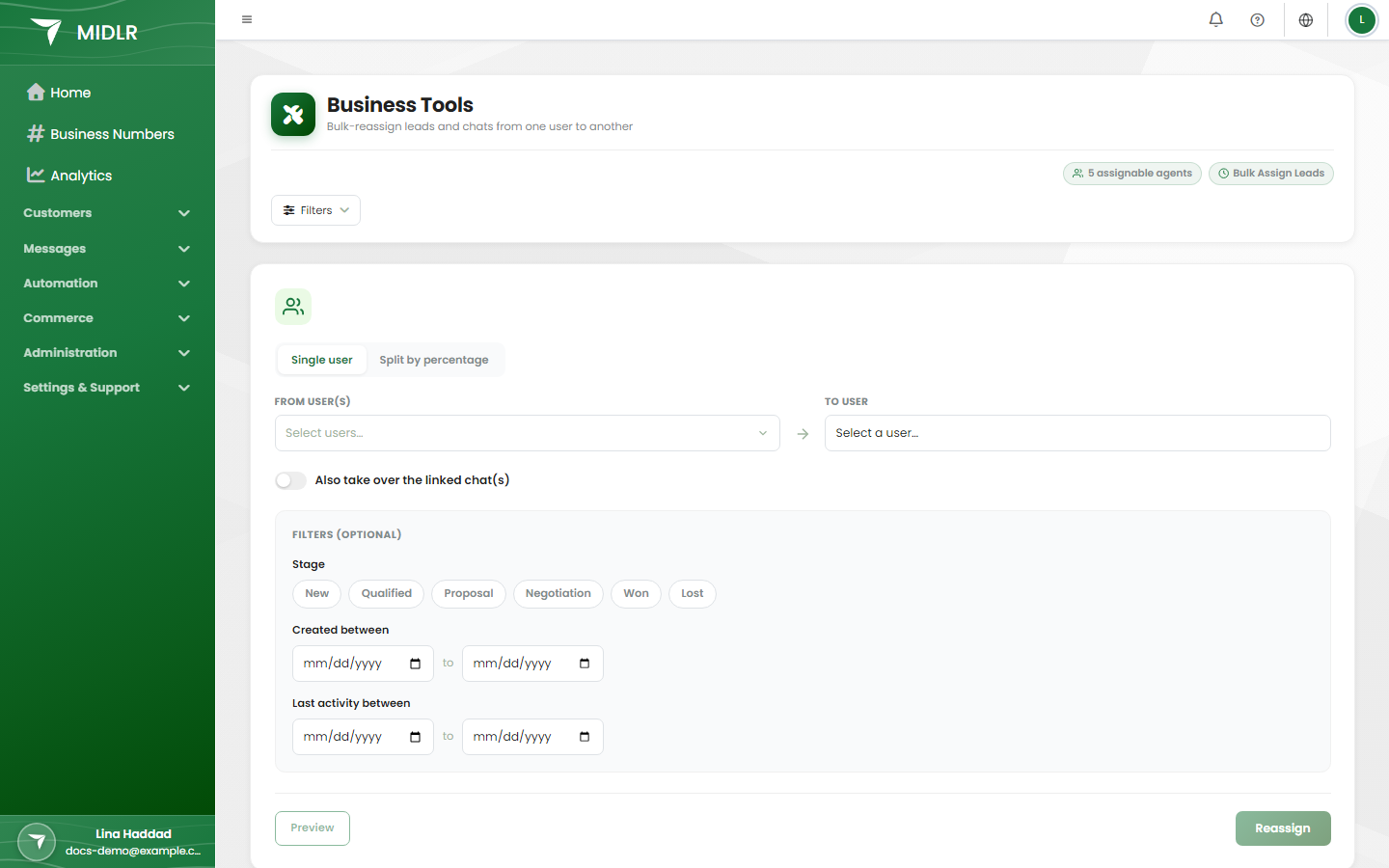
Move everything to one person
- Pick the tab: Bulk Assign Leads or Bulk Assign Chats.
- Leave Single user selected.
- Under From user(s), pick one or more people. Pick Unassigned to move chats or leads that nobody has yet.
- Under To user, pick the person who should take them over.
- Optional: narrow it down with Filters (optional) (see below).
- Optional: tick Also take over the linked chat(s) (on the leads tab) or Also take over the linked lead(s) (on the chats tab), so the customer's lead and chat stay with the same person.
- Click Preview. You see how many will be moved, for example "24 chat(s) will be reassigned."
- Click Reassign, then Yes, reassign.
WARNING
Bulk reassignment can't be undone. Check the preview number before you confirm.
Split work between several people
Use this to share a pile of chats or leads out fairly.
- Pick the tab and choose Split by percentage.
- Under From user(s), pick who the work comes from.
- Under Split between, pick an agent and type their percentage. Click Add agent for each extra person.
- Keep going until you see 100% allocated ✓. Until then the page shows how much is left.
- Click Preview to see how many each person will get.
- Click Reassign, then Yes, reassign.
A person you're moving work from can also be in the split. For example, Sara keeps 20% and the rest is shared between two colleagues. Each agent can only be added once.
Filters
Filters let you move only part of someone's work. Leave them empty to move everything.
| Filter | Leads tab | Chats tab |
|---|---|---|
| Stage | Only leads in the stages you pick | |
| Status | Only chats with the statuses you pick | |
| Source | Where the lead came from | Where the chat came from |
| Created between | ✓ | ✓ |
| Last activity between | ✓ | ✓ |
| First incoming message between | When the customer first wrote |
Click Clear filters to remove them all.
TIP
Moving a holiday cover? Filter by Last activity between to hand over only the conversations that are still active.
Related
- Users
- Groups
- Leads
- Chatting (the inbox)
- Business Config: how new chats are assigned automatically