
Find your way around
This page is a quick tour of the Midlr screen: the sidebar on the side, the toolbar at the top, notifications, language and theme. It also explains why you might not see a menu item that a colleague has.
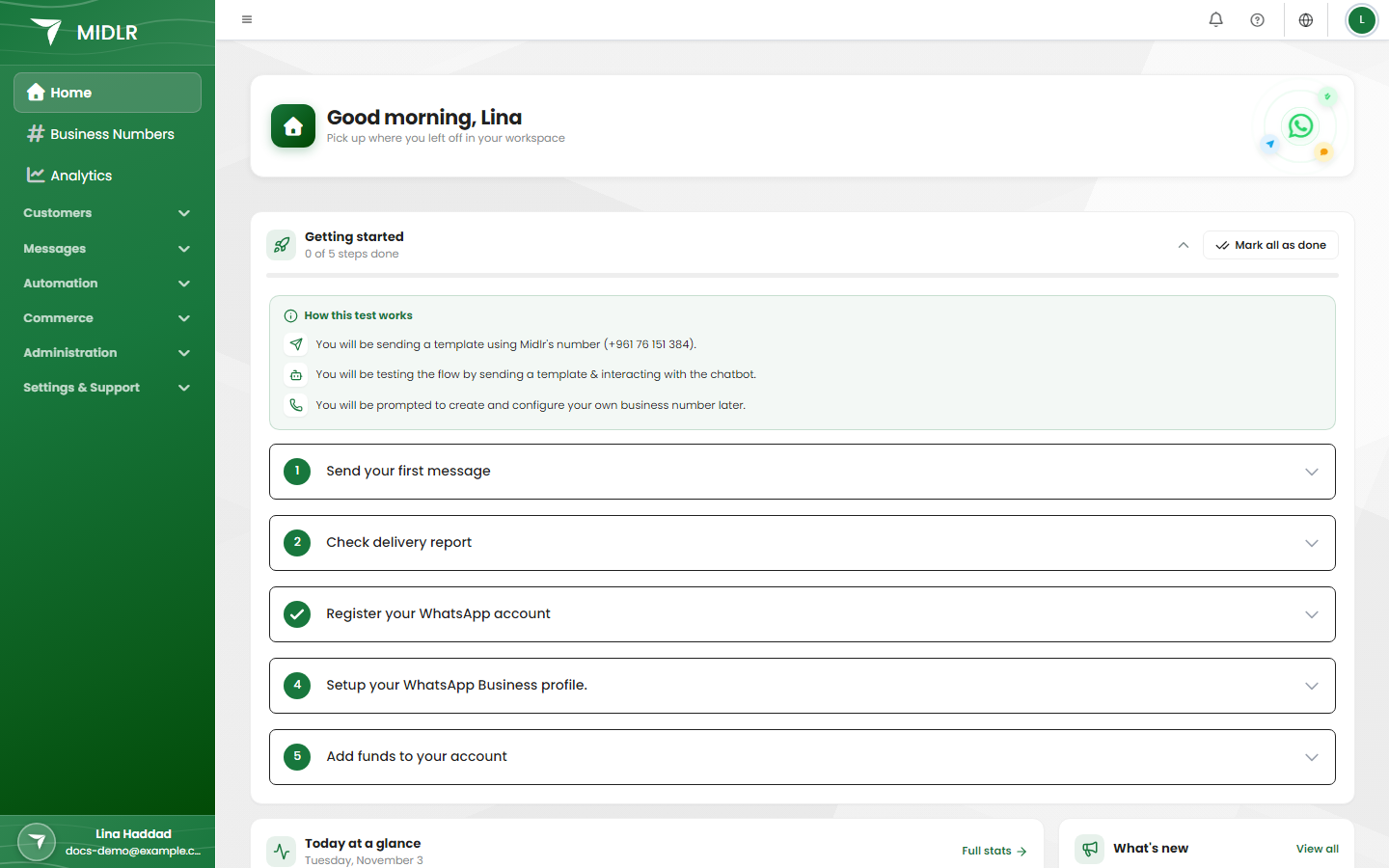
The sidebar
The sidebar is your main menu. It is grouped into sections. Click an item to open that page.
| Section | Items |
|---|---|
| (top, no title) | Home, Business Numbers, Analytics |
| Customers | Chatting, Team Chat, Calls, Leads, Contacts, Phonebooks |
| Messages | Templates, Campaigns, Schedules, SMS (with SMS Templates and SMS Campaigns) |
| Automation | Bot Factory, AI Employees, Forms, Bookings |
| Commerce | Catalogs, Orders, Media Library |
| Administration | Users, Roles, Groups, Labels, Saved Messages, Plans, Payments |
| Settings & Support | Account Settings, Business Config, Tools, API & Integrations, Support Tickets |
Administration and Settings & Support are folded by default. Click the section name to open or close it. Midlr remembers which ones you left open.
To learn what each page is for, see What is Midlr?.
Hide or show the sidebar
Click the menu button (three lines) at the left of the toolbar to hide or show the sidebar. This gives you more room, for example in the inbox. On a phone or small screen, the same button opens the menu.
Why is a menu item missing?
You only see the pages you can use. An item can be missing for three reasons.
| Reason | What you see | What to do |
|---|---|---|
| Your role doesn't allow it. | The item isn't in the sidebar. If you open the page from a link, Midlr shows an access denied message. | Ask your admin to give your role the permission. See Roles & permissions. |
| Your plan doesn't include it. | Midlr takes you to the Plans page when you try to open it. | See Plans to upgrade. |
| The feature isn't switched on for your business. | The item isn't in the sidebar. | Some features, such as Team Chat, Calls, SMS, AI Employees and API & Integrations, are available on selected plans or switched on per business. If you need one, open a support ticket. |
If a whole section has nothing you can use, the section title is hidden too.
TIP
Two people in the same business can see different menus. That is normal: each person's role decides what they see.
The toolbar
The toolbar runs along the top of every page. From left to right on the right-hand side, you may see:
| Item | What it does |
|---|---|
| Ask Midra | Opens Midra, your team assistant (beta). It only shows after Midra is activated on the AI Employees page. You can also press Ctrl J (⌘J on a Mac). See Team assistant (Midra). |
| Team Chat | Opens the team chat panel, with a count of unread messages. See Team chat. |
| Notifications (bell) | Shows new chat messages and system alerts. See below. |
| Language (flag) | Changes the language of Midlr. See below. |
| Your picture or initial | Opens the Account menu with Profile and Logout. |
Notifications
Click the bell to see what's new. A number on the bell shows how many unread items there are.
- Use the filters All, Chats and System to narrow the list.
- Chats: Unread conversations from customers.
- System: Team and assignment alerts, for example when an agent goes offline or comes back online.
- Click Mark all as read to clear the list.
When there's nothing new, you see You're all caught up.
The bell only appears if you can use the inbox.
TIP
To get alerts even when Midlr isn't open, turn on Push Notifications in Account Settings, or use the mobile app. See Account settings.
Your account menu
Click your picture or initial at the far right of the toolbar:
- Profile opens Account Settings, where you manage your account, password, theme and notifications.
- Logout signs you out.
Change the language
- In the toolbar, click the flag (Language).
- Pick English or العربية (Arabic).
Midlr switches right away and remembers your choice. In Arabic, the screen is shown right to left.
The language only changes Midlr's own screens. It doesn't translate your messages, templates or customer chats.
Change the theme (light or dark)
- In the sidebar, under Settings & Support, click Account Settings. (Or click your picture in the toolbar, then Profile.)
- On the Theme card, click Light or Dark.
The change applies right away and is saved to your account.