
Campaigns
A campaign sends one approved template to many customers at once, for example a promotion to everyone in a phonebook. You can send it now, schedule it, or let it go out in batches over several days.
Before you start
- You need an Approved template. See Templates.
- You need a phonebook with the customers you want to reach.
- You need permission to view and launch campaigns. If you don't see Campaigns in your sidebar, ask your admin. See Roles & permissions.
WARNING
Every campaign message is a template message, and WhatsApp charges for template messages. Sending to people who don't expect your messages can also get your number blocked or limited. Only send to customers who agreed to hear from you. See WhatsApp basics and Messaging limits & quality.
See your campaigns
In the sidebar, under Messages, click Campaigns.
The list shows each campaign's Phone Book, Template, Delivery Stats (how many were sent and how many failed), Status and Launch Date. You can search, and filter by template, phonebook, status and date.
Click the eye icon (Details) to open a campaign.
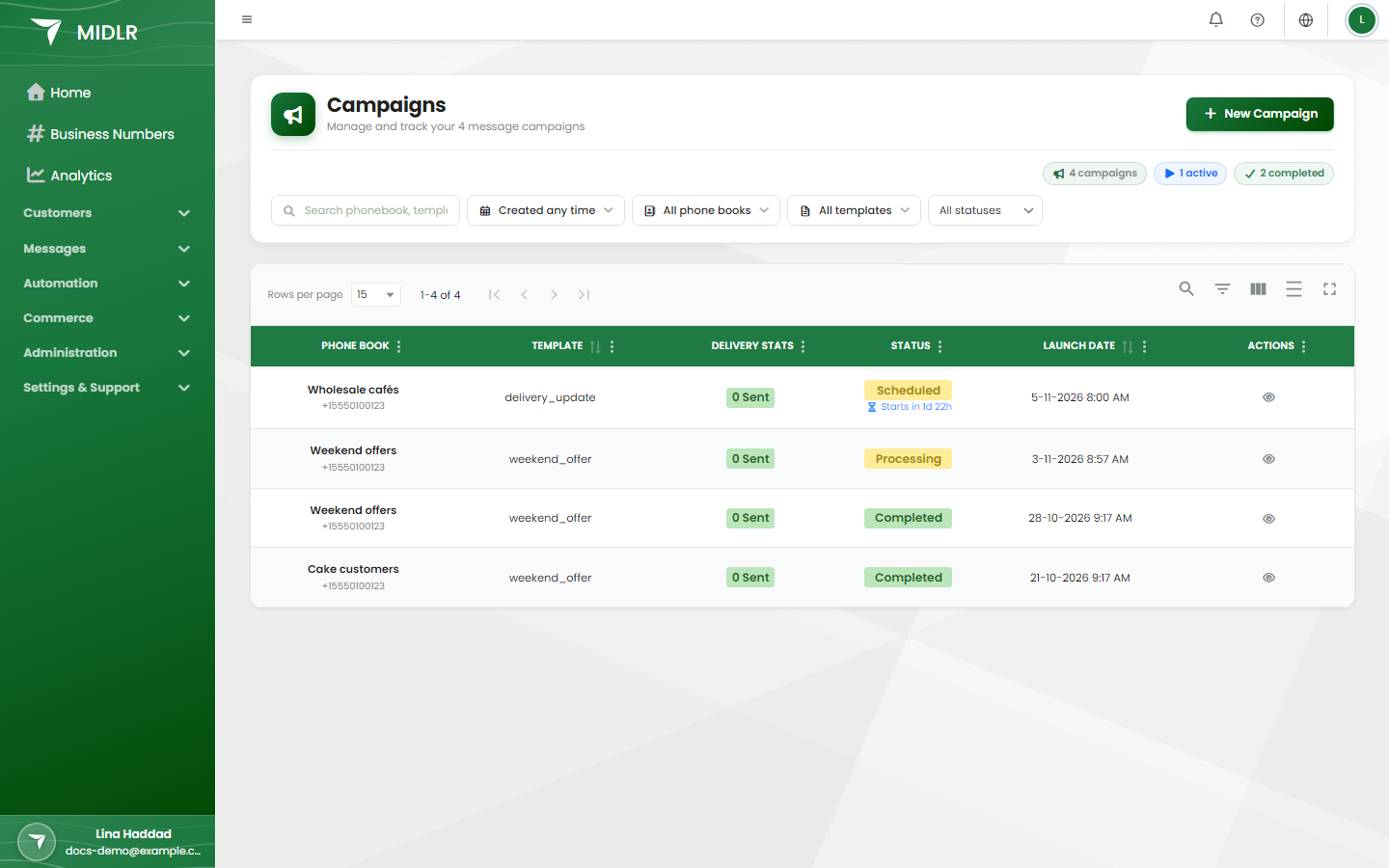
Create a campaign
Click New Campaign. The campaign builder has two parts, Message & audience and Delivery & launch, which walk you through the steps below. The preview on the right updates as you go.
Step 1: Template & Audience
- Click Choose template and pick an approved template. Click Use this template.
- Pick the Business Number to send from.
- Pick the Phonebook to send to. The list on the right shows who will receive it.
- If some contacts already received this template before, Midlr asks what to do:
- Skip them (recommended): send only to new contacts.
- Send to everyone: send to all contacts again, including repeats.
- Click Next.
TIP
If the template has a header picture, video or document, you can swap it for this campaign only with Change header media. Click Reset to go back to the template's own media.
If the template has a "Call us on WhatsApp" button, calling must be turned on for the business number you send from.
Step 2: Personalize Each Message (only if your template has variables)
If your template has variables (like a customer name or an order number), you give every contact their own values with a spreadsheet.
- Click Download sheet. It already lists every contact this campaign will send to, with one column per variable.
- Fill in every cell. Keep the header row and the
phone_numbercolumn as they are. - Click Choose file and upload it back (Excel
.xlsx,.xlsor CSV).
Midlr checks the file against your audience and tells you:
- How many contacts are ready.
- How many contacts are missing from the file.
- How many rows have empty values.
- How many numbers in the file aren't in this audience (these are ignored).
You can't launch until every contact has a value for every variable. If something is missing, click Download sheet to fix: the rows to fix are at the top.
Step 3: Delivery Options
Under When & how to send, pick exactly one option:
| Option | What happens |
|---|---|
| Send now | Sends straight away to everyone in the audience. |
| Schedule for later | Sends once, to everyone, at the date and time you pick. |
| Keep sending until everyone's reached | Starts now (or at a start time you pick) and resumes on its own whenever your messaging limit frees up, until every contact has been sent to. |
| Send in batches every few days | Sends a batch of contacts every few days until everyone is reached. You set Days between sends and Contacts per batch. |
You can also limit sending to certain hours. Under Sending hours, choose Only between these hours and set From and Until. The campaign pauses outside those hours (for example overnight) and continues on its own. Times are in your business's timezone.
Your messaging limit
WhatsApp limits how many customers each business number can start conversations with in 24 hours. The builder shows your Remaining limit (24h).
- If your audience fits, you see "This is within your remaining messaging limit".
- If it doesn't, sending pauses automatically once the limit is reached. To control this, pick Keep sending until everyone's reached or Send in batches every few days, or turn on Use a custom batch size under Send in Batches (optional) and pick one batch to send now.
See Messaging limits & quality.
Review and launch
The Ready to send summary shows the template, sender, audience size, personalization and delivery choice. Check it, then click Launch Campaign (or Schedule Campaign, or Start Recurring Campaign).
WARNING
If Meta has blocked messaging on your WhatsApp account, you see This campaign cannot be launched. If there is a payment problem, click Add a payment method, fix it, then click Check again. If you see Messaging is limited on this account, you can still launch, but some messages may not be delivered.
Demo plan
On a demo plan you can only send a limited number of campaigns. When you reach it, you see Demo limit reached. and a link to upgrade. See Plans.
Campaign statuses
| Status | What it means |
|---|---|
| Draft | Not launched yet. |
| Pending | Waiting to start. |
| Scheduled | Will start at the time you picked. A countdown shows when. |
| Sending | Messages are going out now. |
| Paused | Stopped for now. It may be waiting for your messaging limit or sending hours, or someone paused it. |
| Completed | Every message has been sent. |
| Failed | The campaign could not be sent. |
| Cancelled | Someone stopped it. |
Manage a running or scheduled campaign
Open the campaign (eye icon). Depending on its status, you see these buttons at the top:
- Pause / Resume: stop sending for now, then carry on. Contacts who already got the message won't get it again.
- Stop: cancel the rest of the campaign. This can't be undone.
- Reschedule: change the date and time of a scheduled campaign.
- Watch Live: see messages go out in real time.
- Manage Recipients: see the exact list of contacts, and remove anyone you don't want this campaign to reach.
INFO
Recipients are locked in when you schedule a campaign. Contacts added to the phonebook afterward won't be included. Rescheduling changes only the time, not the list.
A campaign can pause on its own. The details page tells you why:
- Waiting for your messaging limit to free up: it resumes automatically.
- Outside send hours: it resumes automatically when the hours start.
- Meta couldn't charge your WhatsApp account: fix your payment method with Fix payment method, then click Resume.
Read the delivery report
Open a campaign to see its report.
Delivery overview shows where every message is now. Click a status to filter the list below it.
| Status | What it means |
|---|---|
| Pending | Not sent yet. |
| Sent | WhatsApp accepted the message. |
| Delivered | It reached the customer's phone. |
| Read | The customer opened it (only if they have read receipts on). |
| Failed | It could not be delivered. Click the message to see the Failed Reason. |
| Opt-out | The customer has unsubscribed from your marketing messages. |
Top failure reasons lists the most common errors.
The Messages list shows each contact with their Phone, whether they are Subscribed, whether they Replied, and the Sent At, Delivered At and Read At times. Filter by status, by Replies, or by Failure Reason. Click Chat to open the conversation with that contact.
Click View Template Performance to see how this template did across all campaigns. See Templates.
INFO
Contacts who opted out of your marketing messages (for example by tapping Stop promotions) and contacts you blocked are skipped automatically when the campaign sends. They don't get the message, so they don't appear in the Messages list. The Opt-out status counts customers who got this campaign and unsubscribed afterwards.
Export a campaign report
On the campaign's page, set any filters you want (status, replies, failure reason, search), then click Export CSV.
Midlr prepares the file in the background while you keep working. When you see Export started, click View Exports to go to your exports list and download it when it's ready.