
Exporting chats
You can download your WhatsApp conversations as an Excel file, for example to keep records, check how your team replies, or share a conversation with someone outside Midlr. You can export one customer's chat, or every chat on a business number.
Exports run in the background, so you can keep working while the file is prepared. When it's ready, you download it from the Exports page.
Before you start
You need permission to export chats. If you don't see the export options, ask your admin. See Roles & permissions.
Export one customer's chat
- In Chatting, open the chat.
- Click ⋮ (more options) at the top of the chat and pick Export.
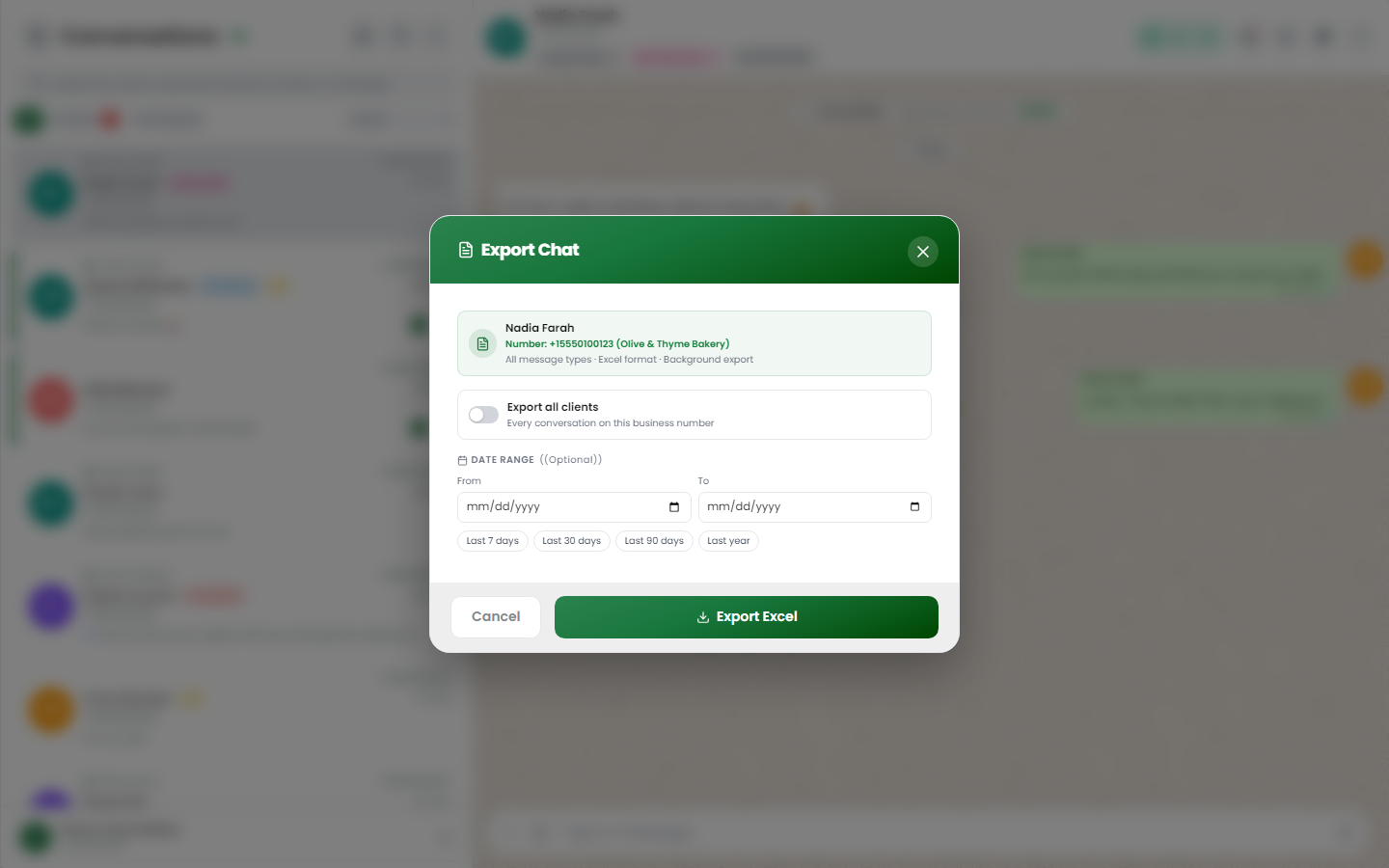
- The Export Chat window shows the customer's name and business number.
- Optional: under Date Range, pick From and To dates, or click Last 7 days, Last 30 days, Last 90 days or Last year. Leave the dates empty to export the whole conversation.
- Click Export Excel.
To export all conversations on the number instead, turn on Export all clients in the same window.
Export all chats on a business number
- In Chatting, click ⋮ (options) at the top of the chat list.
- Pick Export Chats.
- Under Number, pick the business number. Export all clients is fixed on, so every conversation on that number is included.
- Optional: pick a Date Range.
- Click Export Excel.
Download your export
After you start an export, Midlr shows Export Started. Click View Exports to go to the Exports page. You can also open it later from Contacts: click Actions and pick Export History.
Each export shows its status:
| Status | Meaning |
|---|---|
| Queued | Waiting to start. |
| Processing | Being prepared. The list updates by itself (Updating live). |
| Ready | Click Download. |
| Failed | Something went wrong. Try again. |
| Cancelled | You stopped it. |
Large exports are split into several files (Part 1 of 3, and so on). Click Download all parts as one zip to get them together.
You can also select several exports and click Download selected (zip) or Delete. To stop an export that is still running, click Cancel. Parts that already finished stay available.
The Exports page also lists exports you started from Contacts and Campaigns.
Admins see everyone's exports. Other team members see only their own.
What's in the file
The Excel file has one row per message, with these columns:
| Column | What it shows |
|---|---|
| Date & Time | When the message was sent or received. |
| Business Number | Your number (only when you export all chats). |
| Client and Phone | The customer (when the export includes more than one customer). |
| Direction | Whether the customer sent it or you did. |
| Sender and User | Who sent it, and which team member. |
| Type | Text, image, document, and so on. |
| Status | Sent, delivered, read or failed. |
| Bot | Whether a bot sent it. |
| Message | The message text. |
All message types are included. Photos, videos and other files are listed as rows, but the files themselves aren't inside the Excel and there's no link to them. Their Message cell shows the kind of file, its file name and its caption, for example [IMAGE] — menu.jpg — Our new menu. To get the file itself, open the chat in Midlr.
Export files stay on the Exports page until someone deletes them. Midlr doesn't remove them automatically.
WARNING
Chat exports contain your customers' personal data. Store and share them carefully.