
Roles & permissions
A role is a set of permissions: a list of what someone can see and do in Midlr. You give each user one or more roles, and they get every permission in those roles combined.
For example, you might make a "Sales Agent" role that can chat with customers and work leads, but can't send campaigns or see billing.
Before you start
You need permission to view roles, and to create, edit or delete them. Admins have all of these.
How permissions change what people see
Midlr hides what a user isn't allowed to use. If a role doesn't include viewing campaigns, Campaigns doesn't appear in that user's sidebar at all. If a role can view something but not edit it, the user sees the page but the edit and delete buttons are missing.
If a user opens a page they can't use (for example from an old link), they see Access Denied.
TIP
If someone on your team says "I can't find that menu", it's almost always their role. Check which roles they have on the Users page.
Some menu items also depend on your plan or on features switched on for your business. If a permission is on but the menu item is still missing, contact support.
Open the Roles page
In the sidebar, open Administration and click Roles. The page is called Roles & Permissions and lists:
- Platform Roles: default roles that come with Midlr. They are marked Read-only. You can give them to users, but you can't change them.
- Business Roles: roles your business created. You can edit and delete these.
Each card shows how many permissions the role has. Click Show all to see them.
Default roles
| Role | What it's for |
|---|---|
| Admin | Full access to everything in your business. |
| Chat Agent | Chatting with customers: view and send messages, transfer chats, view and edit contacts, use templates, the media library, labels and Team Chat. |
| Call Center Agent | Answering calls in the Call Center. |
| Call Center Manager | Running the Call Center: receiving, transferring and assigning calls. |
A user can't be both a call center agent and a call center manager.
Create a role
- Click Create Role.
- Type a Role Name your team will recognise, such as "Support Lead".
- Optional: under Start from an existing role, pick a role to copy its permissions, then adjust only the differences.
- Under Assign Permissions, turn on what this role can do (see below).
- Click Create Role.
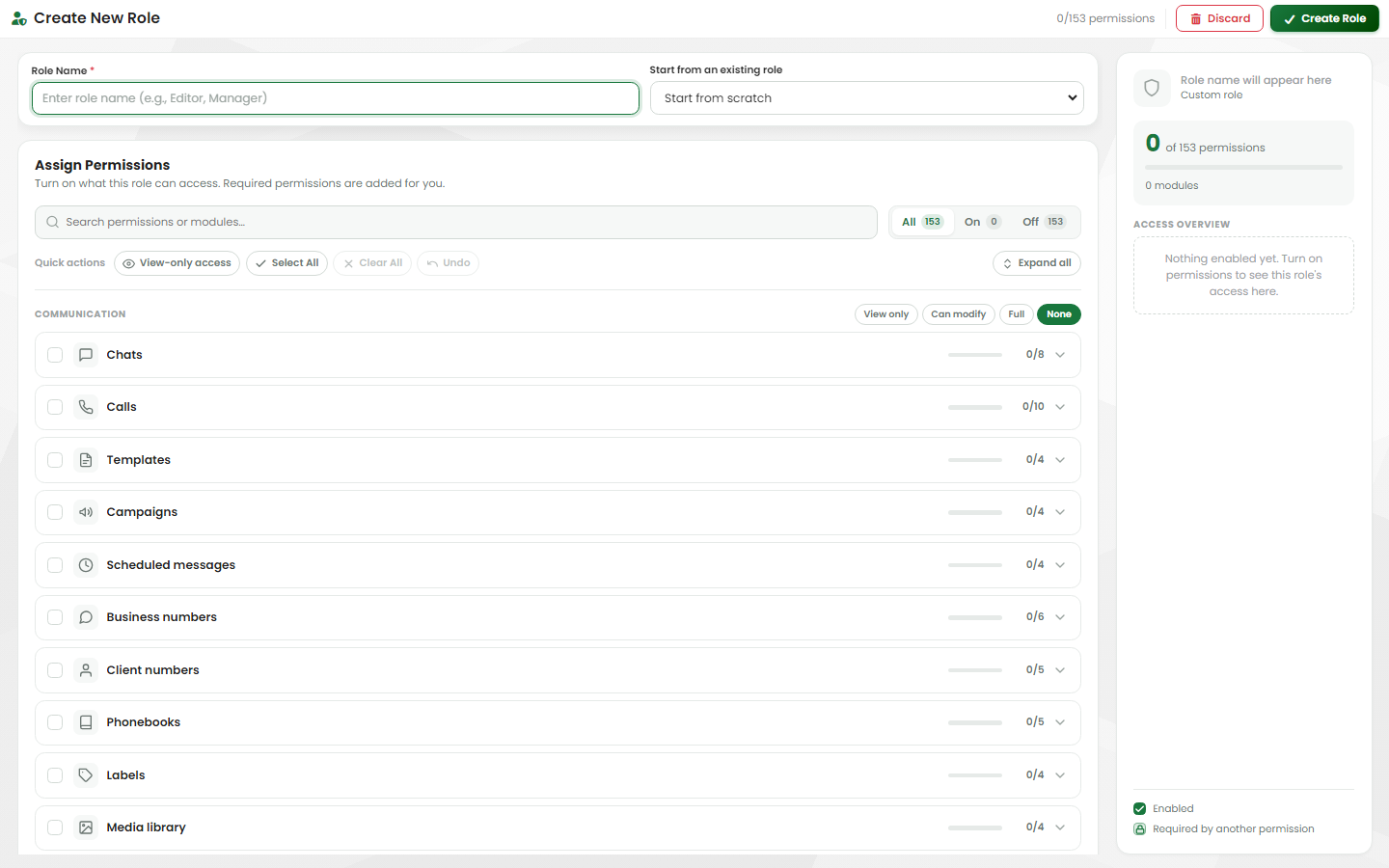
You can then give the role to users from the Users page.
Ways to pick permissions quickly
- Quick actions at the top: View-only access turns on only the "view" permissions everywhere; Select All and Clear All do what they say; Undo reverses your last change.
- Each section has four buttons:
| Button | Turns on |
|---|---|
| View only | Only the view permissions in this section |
| Can modify | View, create and edit, but no deleting |
| Full | Every permission in this section |
| None | Turns the section off |
- The switch beside each module turns all of that module on or off.
- Search permissions or modules… finds a permission by name. The All / On / Off filter shows everything, only what's on, or only what's off.
Required permissions
Some permissions need others to work. For example, sending messages needs viewing chats. When you turn one on, Midlr turns on what it needs and tells you ("required permissions turned on"). Those show as Required by another permission, and you can't turn them off until you turn off the permission that needs them.
The Access overview on the right shows a summary of the role as you build it.
What each section controls
Permissions are grouped into sections and modules. Most modules have the same kinds of permission: View, Create, Edit and Delete. The table below explains the modules and any special permissions.
Communication
| Module | What it controls |
|---|---|
| Chats | Seeing the chat list and reading messages; sending, editing and deleting messages; transferring a chat to someone else; exporting chats; chat statistics; and Bulk-assign chats (the Tools page). Viewing messages also gives access to Saved Messages. |
| Team Chat | Use Team Chat, Create chat groups, and View insights. |
| Calls | Make calls, receive, accept and decline calls, End calls, transfer and assign calls, and view or edit call settings. |
| Templates | Viewing, creating, editing and deleting message templates. |
| Campaigns | Viewing, creating and editing campaigns, and Monitor (following a campaign while it sends). |
| Scheduled messages | The Schedules page. |
| Business numbers | Viewing your connected numbers and their details, connecting, editing and deleting numbers, and Disconnect Business Manager. |
| Client numbers | The Contacts page: viewing, adding, editing, deleting and exporting contacts. |
| Phonebooks | Viewing, creating, editing, deleting and exporting phone books. Editing also lets you choose a user's phone books on the Users page. |
| Labels | The Labels page. |
| Media library | Viewing, uploading, editing and deleting files in the media library. |
Leads & sales
| Module | What it controls |
|---|---|
| Leads | Seeing leads; creating, editing, deleting, importing and exporting them; Assign; Change stage; View everyone's leads (without it, people see only their own); Bulk move to deleted; View notifications; and Bulk-assign leads (the Tools page). |
| Lead activities, Lead tags, Lead logs, Lead sources | The matching parts of a lead: activities, tags, logs, and where leads come from. View audit logs shows the history of changes. |
| Lead automation | Viewing and editing lead automation rules. |
| Reports & statistics | Lead statistics, Workload dashboard, Performance dashboard, Agent statistics, and Analytics (the Analytics page). |
| Leads settings | The leads part of Business Config. |
| Bookings | Seeing, creating, editing and deleting bookings. |
| Booking settings | The booking part of Business Config. |
Automation & developers
| Module | What it controls |
|---|---|
| Bots | The Bot Factory: viewing, creating, editing, duplicating and deleting bots. |
| AI employees | Viewing AI Employees, and Manage to set them up and change them. |
| Flows | Forms: viewing, creating, editing and deleting, plus viewing, exporting and deleting form statistics. |
| Flow responses | The answers customers sent through forms. |
| Integrations | The API & Integrations page: View and Manage. |
Catalog & commerce
| Module | What it controls |
|---|---|
| Catalogs | Viewing catalogs, Sync, Link and Unlink. |
| Catalog products, Catalog categories | Viewing, adding, editing and deleting products and categories. View product list shows the products of a catalog. |
| Orders | Viewing and editing orders. |
| Payments | The Payments page. |
Administration
| Module | What it controls |
|---|---|
| Users | The Users page. |
| Roles | This page, plus Assign (giving roles to users). |
| User groups | The Groups page. |
| Billing & subscription | View subscription shows the Plans page; Manage subscription lets the person change or cancel the plan. View billing no longer opens anything: billing is now part of the Payments page, which the Payments permission controls. |
| Support tickets | The Support Tickets page. |
Edit a role
- On a role under Business Roles, click Edit.
- Change the name or permissions. Copy permissions from a role replaces the current selection with another role's; you can Undo it.
- Click Update Role.
Changes apply to everyone who has the role.
Delete a role
- On the role's card, click Delete.
- Click Yes, delete it.
People who had this role lose its permissions straight away. Check they have another role first, or they may lose access to pages they need.