
Leads
Leads is Midlr's sales pipeline. A lead is a possible sale: a customer who asked about a product, a price or a booking. You move each lead through stages, from first contact to a won or lost deal, and Midlr reminds your team when a lead needs attention.
Leads are linked to your contacts, so you can open the WhatsApp chat of any lead in one click.
Before you start
- You need permission to use Leads. Without View all leads, you only see leads assigned to you. Creating, editing, deleting, assigning, exporting and tagging leads each have their own permission. See Roles & permissions.
- Your admin controls automatic assignment, lead scoring and alerts in Business Config.
Open Leads
In the sidebar, under Customers, click Leads.
Pick how to see your leads with the tabs at the top:
| View | What it shows |
|---|---|
| Board | One column per stage, with a card for each lead. Drag cards between columns to move them. |
| List | A table of leads you can sort, with more details per row. |
The Other views menu next to them has more:
| View | What it shows |
|---|---|
| Stats | Pipeline reports: totals, value, won and lost, by stage, rep and source, monthly trend, lost reasons. |
| Workload | How many leads each team member is handling. |
| Performance | How each team member is doing. |
| Activities | All calls, meetings, emails and tasks across your leads, including overdue ones. |
| Tasks board | All tasks in To do, In progress and Done columns. Drag a task to change its status. |
| Logs | Notes written on leads. |
| Feature reference | A built-in guide to every Leads feature. |
Stats, Workload and Performance need their own permissions.
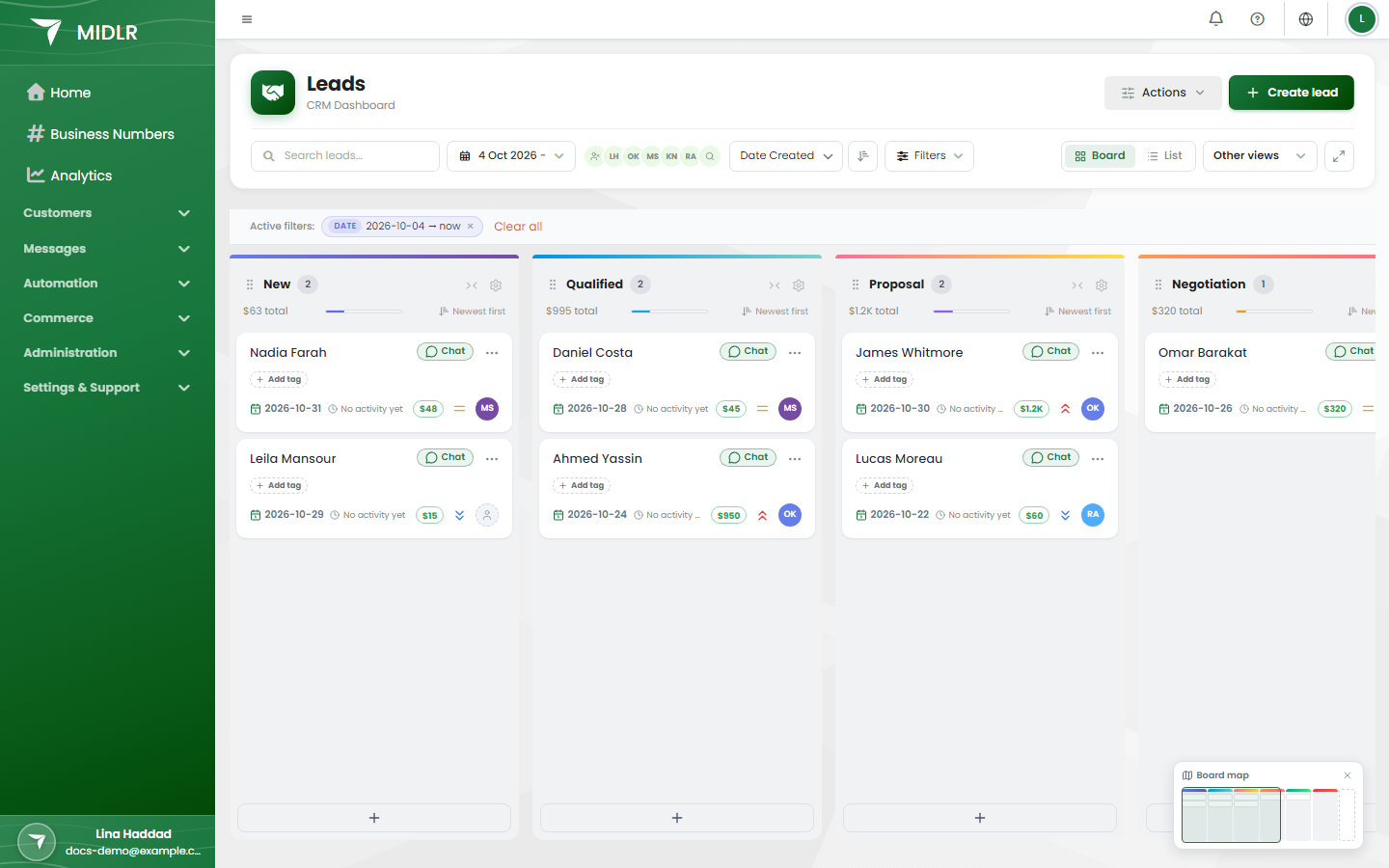
Create a lead
- Click Create lead (or Actions > Create lead). On the board, you can also click + at the bottom of a column to create the lead straight into that stage.
- Under Find existing client, search for the customer by name or phone. Or enter a new Phone number and First Name.
- Pick the Business Number the lead belongs to.
- Fill in the lead details:
- Stage and Source (where the lead came from, like Facebook or a referral).
- Priority: High, Medium or Low.
- Budget: what the customer might spend.
- Assigned To: the team member responsible.
- Tags and Notes.
- Company details, email and a secondary phone, if you have them.
- Click Create Lead.
Create a lead from a chat
While chatting with a customer, click Add to Leads at the top of the chat. Fill in the details and save. The chat then shows a Lead badge. Click it to Change Stage. See Chatting.
Your admin may limit how many leads one customer can have. When that limit is reached, you see Limit reached.
Move a lead through the pipeline
- On the board: drag the card to another column.
- From a lead's menu: open the ••• menu (or right-click a row in List) and pick Change Stage.
Some stages do things automatically:
| Stage | What happens |
|---|---|
| Lost | You choose a Lost Reason, like "Price too high". Reasons show up in reports. |
| Won | Records the outcome. To record the final amount, use Close Deal. |
| Any stage with an automation rule | A follow-up task is created for the lead. See Automatic tasks. |
Close a deal
Moving a lead to Won doesn't record how much it closed for. To do that:
- Open the lead's menu and pick Close Deal.
- Enter the Closed deal value and the Closed at date.
- Save.
The lead's Budget stays as it was. The closed value is kept separately and used in your revenue reports.
Work on a lead
Click a lead to open Lead Details. From the lead's ••• menu you can also:
| Action | What it does |
|---|---|
| Quick Edit / Full Edit | Change the lead's details. |
| Add Note | Write a note. Notes are saved in Logs. |
| Activities | Log a call, meeting, email, task or event. |
| Manage Tags | Add or remove tags. |
| Assign Agent | Give the lead to another team member. They get a notification. |
| Change Priority | High, Medium or Low. |
| Share to Team Chat | Send the lead to a teammate in Team chat. |
| Archive / Delete | Hide or remove the lead. Both can be undone. |
| Copy Phone / Copy Email | Copy to your clipboard. |
Click WhatsApp on a lead to open its chat in a window without leaving Leads. Click Open in full chat to go to Chatting.
Log activities
Activities keep a history of everything you did with a lead. Each one has a title, details, a due date and a status: Pending, In Progress, Scheduled or Completed.
Logging any activity also tells Midlr the lead is being worked on, which stops inactivity alerts.
Automatic tasks and reminders
Midlr creates follow-up tasks for you. They appear in the lead's Activities, marked Auto, and you can edit, reassign, reschedule or delete them like any task.
| When | Task created | Due |
|---|---|---|
| A lead enters a stage that has an automation rule | The task set in the rule | The rule's "due in" days |
| A meeting is completed | Send the meeting summary | End of today |
| A call is logged | Send a follow-up email | End of today |
To set up your own rules, click Actions > Automation Rules. Pick a stage under When a lead enters this stage:, the Task type, a description, and Due in (days).
You get push notifications 24 hours, 4 hours and 1 hour before a task is due, and when it's due. If a task is more than a day overdue, the manager is told once.
Inactivity alerts
If nobody does anything with a lead:
| After | What happens |
|---|---|
| 24 hours | The assigned person gets a reminder. |
| 3 days | Their manager is notified. |
| 7 days | The lead is archived automatically. Nothing is deleted. |
Log any activity on the lead to reset the timer. Your admin can change the auto-archive days, or turn auto-archive off. The 24-hour and 3-day alerts are always on.
The bell icon (Notifications) on the Leads page shows alerts that need your attention.
Lead scores
If lead scoring is turned on, each lead gets a score from 0 to 100. Higher means hotter. The score is based on recent activity (most important), budget, stage, company size, and how quickly you replied. Scores update by themselves.
If a lead scoring above 80 has had no activity for 24 hours, the assigned person gets an alert.
How leads get assigned
You can assign leads by hand at any time (Assign Agent, or select several and assign them together).
If your admin turns on Automatic Lead Assignment in Business Config, new leads without an owner go to the team member with the lightest workload. Workload counts their leads, active leads, meetings and average deal size. People who are already at their limit are skipped. Your admin can also leave some people out of automatic assignment.
Search and filter leads
Use Search leads... to search by name, company, email or phone. Use the agent filter at the top to see one person's leads.
Click Filters (or press Shift + F) to filter by:
- Pipeline Stage, Lead Source, priority, Tags (match all or any).
- Deal Amount (budget), star rating, lead score.
- Created Date Range, Closed Status (open or closed) and closed dates.
- Assigned person, or unassigned.
- The business number the lead came from.
- Stale leads (no activity for a number of days).
- Archived or Deleted leads, so you can restore them.
- Your contacts' custom fields.
You can save a set of filters and load it again later.
Change many leads at once
Tick the leads you want (or select all leads that match your filters). Then use the toolbar to:
- Reassign them to another person.
- Change their stage. Tick Create automation tasks to run that stage's rules for each lead.
- Change their priority.
- Add or remove tags.
- Archive or Unarchive them.
- Delete them. Deleted leads can be restored from the Deleted filter.
Set up your pipeline
Under Actions, in Pipeline setup, admins can:
- Manage Stages: add, rename, reorder, colour and turn off stages. Click a stage name on the board to rename it. Won and Lost stages can't be deleted.
- Manage Sources: the list of places leads come from.
- Tags: create tags with a name, description and colour.
- Automation Rules: see Automatic tasks.
Import and export leads
Import: click Actions > Import. Click Download Template first. It has three sheets: Leads, Activities and Logs. Fill it in and upload it, then click Import Leads. Leads whose phone number matches a contact are linked to that contact. Leads with the same phone number aren't imported twice. You see a summary of what was imported and skipped.
Export: click Actions > Export. Choose the columns, whether to add activity and log sheets (Additional Sheets), and click Export Excel.
Clean up
Actions > Clean Unused Leads permanently deletes every lead with no phone number or no linked contact, with all their activities and history.
WARNING
Clean Unused Leads can't be undone. Normal deleted leads can be restored, but these can't.