
Orders
The Orders page collects every order your customers place on WhatsApp, so your team can confirm, deliver and track them in one place.
Before you start
- You need permission to view orders. If you don't see Orders under Commerce in your sidebar, ask your admin. See Roles & permissions.
- Changing an order's status or details needs edit permission. Without it, you can view orders but not change them.
Where orders come from
Customers order by browsing your catalog in WhatsApp, adding products to the cart and tapping to send the order. The order then appears in Midlr.
New orders appear on the page straight away; you don't need to reload.
View your orders
In the sidebar, under Commerce, click Orders.
There are two views. Switch between them at the top of the page:
- Board: one column per status. Drag an order card from one column to another to change its status.
- Table: a list with Order #, Name, Phone, Total Price, Agent, Created At and Status.
Use the search box to find orders by name, phone, status or order ID, and the date picker to show orders from certain days.
On the board, each card shows how long ago the order was placed. A new order turns orange after 15 minutes and red after 30 minutes, with an SLA tag, so your team can see which orders are waiting too long.
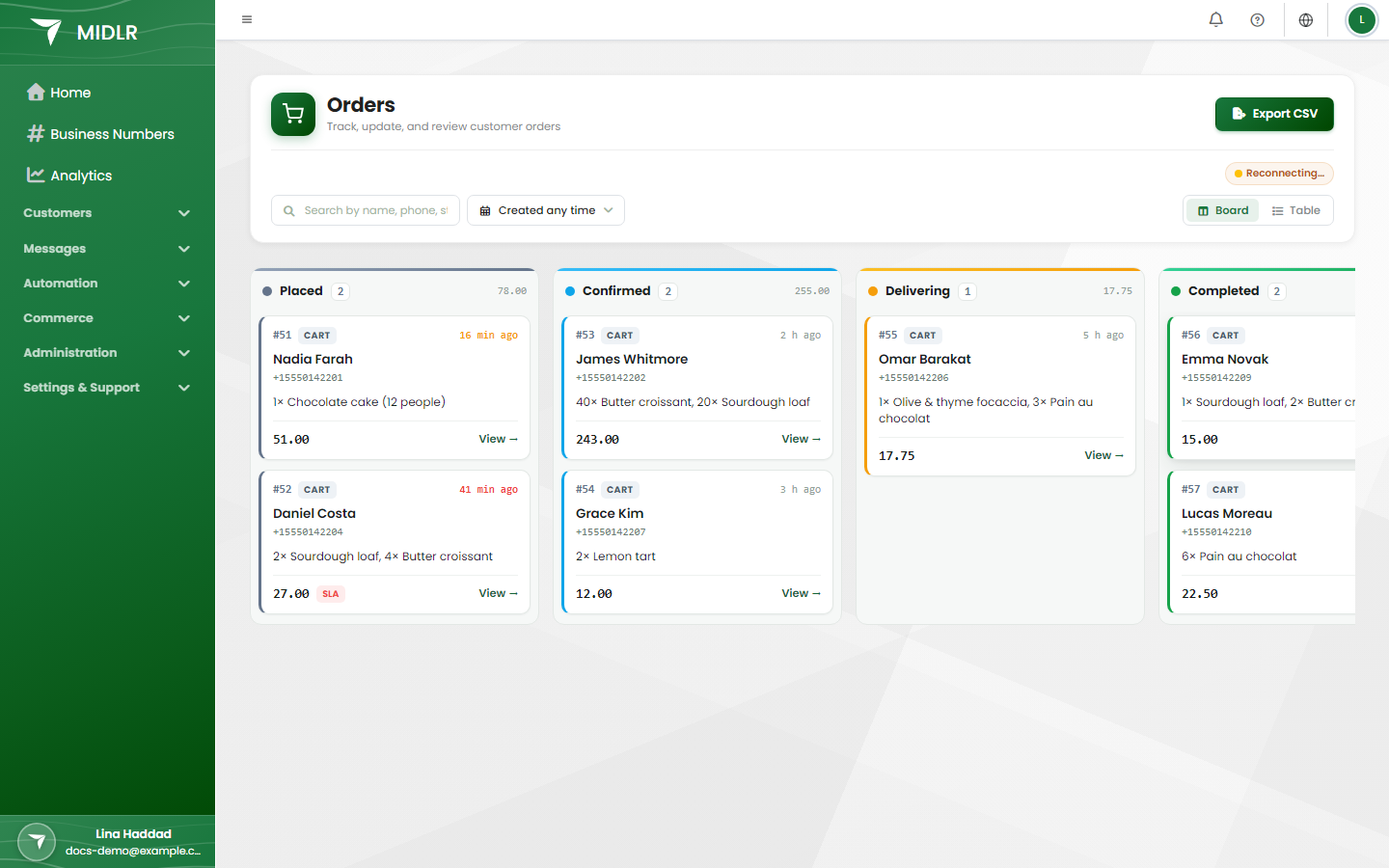
Order statuses
| Status | What it means |
|---|---|
| Placed | The customer sent the order. Nobody has handled it yet. |
| Confirmed | Your team accepted the order. |
| Delivering | The order is on its way. |
| Completed | The customer received it. |
| Canceled | The order was cancelled. |
| Returned | The customer sent it back. |
Change an order's status
- On the Board, drag the card to the new column.
- In the Table, pick the new status from the drop-down in the Status column.
You see Order status updated when it's saved.
INFO
Changing the status only updates it in Midlr. It does not send a message to the customer. To tell the customer, message them from the chat.
See and edit order details
Click View on an order. You see:
- Order Details: order number, status, total and when it was created.
- Customer Details: name, phone and address.
- Delivery Details: delivery Agency, Agent, Contact, Fees and Arrival ETA.
- Business Details: the staff member handling the order and the Session date.
- Products: each item with its picture, quantity, price and sale price.
To change the customer or delivery details:
- Click Edit Details.
- Make your changes.
- Click Save Details.
Click Print to print the order, for example as a packing slip.
Export orders
Click Export CSV to download a spreadsheet with each order's number, customer, phone, total, agent, date and status.