
Chatting (the inbox)
Chatting is your team's shared WhatsApp inbox. Every customer who messages your business number shows up here, and anyone on your team with access can read and reply from the same place.
Before you start
- You need a connected business number. If you don't have one yet, Midlr shows No Business Number Found with a Start Onboarding button. See Connect your WhatsApp number.
- You need permission to use chats. If you don't see Chatting in the sidebar, ask your admin. See Roles & permissions.
Open the inbox
In the sidebar, under Customers, click Chatting.
The screen has three parts:
| Part | What it shows |
|---|---|
| Chat list (left) | All Conversations, newest activity first. |
| Chat window (middle) | The messages with the customer you picked, and the message box. |
| Contact info (right) | Details about the customer. It opens when you click the customer's name at the top of the chat. |
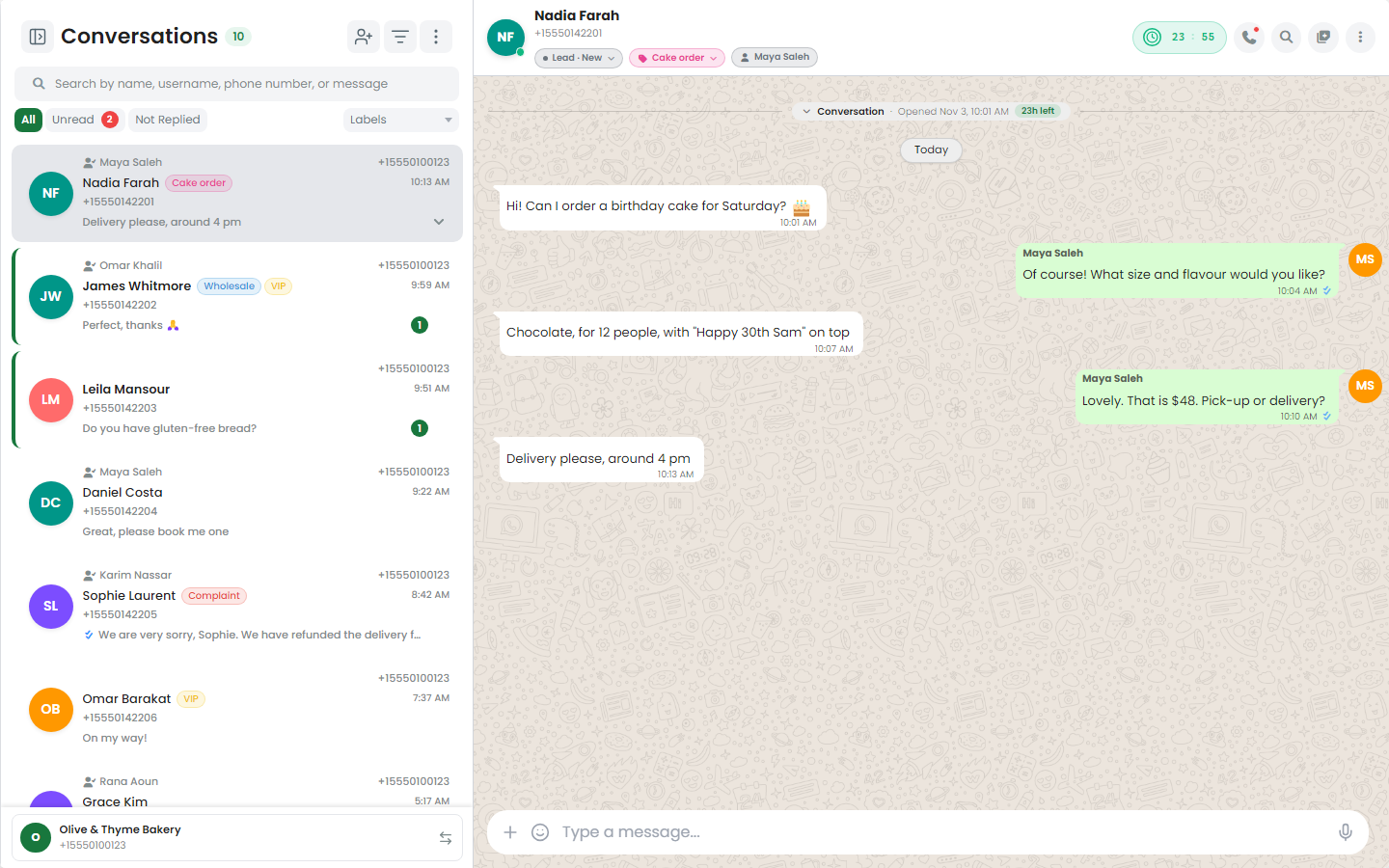
If you have more than one business number, pick the number you want to work on at the bottom of the chat list. Each number has its own chats.
Read the chat list
Each row in the list shows:
- The customer's name (or phone number).
- A preview of the last message, with an icon for photos, voice messages, documents and so on.
- The time of the last message.
- The ticks for the last message you sent. See What the ticks mean.
- The number of unread messages.
- The labels on the contact.
- The agent or group the chat is assigned to.
The number next to Conversations at the top is how many chats match your current search and filters.
Search chats
- Click the search box at the top of the chat list.
- Type a name, username, phone number, or words from a message.
Results are split into Chats (matching customers) and Messages (matching message text). Click a result to open it. To go back to the full list, click the × in the search box.
TIP
To search inside one conversation instead, open the chat and click the search icon at the top (Search in chat). You can search by text and also Filter by date.
Filter the chat list
Quick filters
Under the search box, pick one:
| Filter | Shows |
|---|---|
| All | Every chat. |
| Unread | Only chats with unread messages. |
| Not Replied | Chats where the last message came from the customer, so they are waiting for you. |
Under the quick filters you can also filter by label. Click a label to show only chats that have it.
Advanced filters
For more detailed filtering, click the filter icon at the top of the chat list. The Advanced Filters panel opens.
| Filter | What it does |
|---|---|
| Date Range | Shows chats with activity in the dates you pick. Use Today, This Week, This Month, or pick your own dates. |
| Lead Stage | Shows customers at a certain stage of your sales pipeline. See Leads. |
| Campaign | Shows customers who were part of a certain campaign. |
| Labels | Shows customers with the labels you pick. |
| Assigned Group | Shows chats assigned to a group, or Unassigned chats. |
| Assigned Agent | Shows chats assigned to a team member, or Unassigned chats. |
| Service Window | Open shows chats you can still reply to freely. Closed shows chats where the 24-hour window has ended. |
| Options | Leads shows only customers who are leads. Blocked shows only blocked customers. |
Click Apply to use the filters, or Reset to clear them. When filters are on, the filter icon shows how many are active. To clear them all at once, click Clear all filters.
Assigned Group and Assigned Agent only appear if you are allowed to see all of the business's chats.
Start a new chat
To message a customer who isn't in your list yet:
- At the top of the chat list, click Add contact.
- Enter the Name, pick the Country, and enter the Phone number.
- Click Add contact.
If the number is already saved, Midlr tells you Already in your contacts and shows an Open chat button.
If you know the customer's WhatsApp username, you can add it in Username (optional).
You can also click the ⋮ (options) menu and pick Open Client List to choose someone from your saved contacts.
WARNING
You can only start a conversation with a template message. Free text is only allowed after the customer writes to you. See Sending messages.
Work on a chat from the list
Hover over a chat in the list and open its menu (the small arrow). You can:
| Action | What it does |
|---|---|
| Mark as read / Mark as unread | Changes the unread state. Marking as unread is handy as a reminder to come back later. |
| Pin to top / Unpin contact | Keeps the chat at the top of your list. |
| Manage Labels | Adds or removes labels on this customer. |
| Transfer chat | Assigns the chat to another team member or group. |
| Archive Chat / Unarchive Chat | Moves the chat out of your main list without deleting it. |
Find archived chats
Click the ⋮ (options) menu at the top of the chat list and pick Archived Chats. The list now shows only archived chats (Showing Archived). Pick it again to go back.
If Auto-Unarchive on New Message is on in Business Config, an archived chat comes back to the main list when the customer writes again. If it's off, the chat stays archived.
Assign a chat to a teammate or group
Assigning a chat tells your team who is handling it.
- Open the chat.
- Click the ⋮ (more options) menu at the top of the chat and pick Transfer. You can also click the agent or group name shown at the top of the chat.
- Under Select Agent to Transfer to:, pick a team member, and/or under Assign to Group:, pick a group.
- If the customer is a lead, you can tick Take over all active leads for this client so the new agent also gets their leads.
- Click Transfer Chat.
What happens when a chat is assigned to someone else
If a chat is assigned to another agent or to a group you are not in, you can read it but you can't reply or change it. Midlr shows Assigned to Another Agent or Assigned to Another Team. Most actions in the chat menu are greyed out.
Team members who are allowed to see all chats can always reply. You set this per user in Users.
TIP
If your business gives chats to agents by phonebook, an agent can also handle every chat in the phonebooks given to them. See Phonebooks.
Set yourself as available
When no chat is open, the middle of the screen shows Availability Status. Turn on Available for chats to receive new chat assignments. Turn it off when you step away.
How new chats get assigned
Your admin picks how new conversations are shared out, under Chat Assignment in Business Config:
| Option | What happens to a new, unassigned chat |
|---|---|
| Manual | It waits unassigned. Anyone with access can open it and take it, or a manager assigns it. |
| Auto | It goes to a random agent who is Assignable and Available. |
| Balanced | It goes to the agent who is furthest behind their daily share of chats. |
| Phone Book | Nothing is assigned automatically. Agents only see chats of contacts in their phonebooks, plus chats assigned to them or their group. |
Chats that already have an agent are never reassigned automatically. To be included in Auto or Balanced, your admin turns on Assignable for you, and you turn on Available for chats yourself.
Organize customers with labels
Labels are coloured tags, like "VIP" or "Waiting for payment". You can filter the chat list by them.
- Add a label to a customer: open the chat, click Labels at the top (or ⋮ > Labels), and tick the labels you want.
- Create a new label: in the labels window, click Create New Label, enter a Label Name, Pick Color, and click Create.
- Manage all labels: click ⋮ (options) at the top of the chat list and pick Manage Labels, or go to Labels.
See the customer's details
Click the customer's name at the top of the chat to open Contact info. Here you can see:
- Phone, Address, and Customer Since.
- Whether the service window is open (Service window open / Service window closed).
- Media, links and docs shared in the chat. Filter by Images, Videos, Documents or Audio.
- The customer's Leads.
- Labels.
Edit the contact and add notes
- In Contact info, click Edit Contact.
- Change the name, email, address, or type in Notes (for example, "Prefers calls after 5 pm").
- Click Show more fields for business details (Company, Job Title, Industry), more address fields, and Phonebooks.
- Click Save.
Notes are only visible to your team. The customer never sees them.
More chat actions
Click ⋮ (more options) at the top of an open chat:
| Action | What it does |
|---|---|
| Leads | Shows this customer's leads. Add a new lead, change its stage, or remove it. See Leads. |
| Timeline | A history of this customer's messages, leads and status changes. |
| Labels | Adds or removes labels. |
| Phonebooks | Adds or removes the customer from phonebooks. |
| Scheduled messages | Shows template messages scheduled for this customer. You can edit or cancel them. |
| Trigger Bot | Runs one of your bots for this customer right now. Only works while the 24-hour window is open. See Bot Factory. |
| Stop Bot / Resume Bot | Stops your bots from replying to this customer, or lets them reply again. |
| Pause follow-ups for this chat / Resume follow-ups | Stops or restarts the automatic "no reply yet" messages for this customer. These are set up in Business Config. |
| Transfer | Assigns the chat to someone else. See above. |
| Share to Team Chat | Sends this chat to a teammate in Team chat. |
| Archive / Unarchive | Hides the chat from your main list, or brings it back. |
| Export | Downloads this chat as an Excel file. See Exporting chats. |
| Help | Explains each action. |
| Block / Unblock | Stops the customer from sending you messages. |
| Clear | Deletes the chat history from Midlr. |
The Phonebooks action may be hidden if your business gives chats to agents by phonebook and you are not allowed to see all chats.
WARNING
Clear removes all messages in this chat from Midlr and can't be undone. The messages stay on WhatsApp and on the customer's phone.
The badges at the top of a chat
| Badge | Meaning |
|---|---|
| 24h window with a timer | How long you can still send normal replies. It resets each time the customer writes. |
| Closing soon | Less than 10 minutes left in the window. |
| Window closed | The customer hasn't written in 24 hours. You can only send a template. |
| Lead | This customer is a lead. Click it to Change Stage. If they aren't a lead, you see Add to Leads. |
| Follow-ups paused | Automatic follow-ups are off for this chat. Click to resume. |
| Reply in ... / Free · ... | The customer came from a click-to-WhatsApp ad. Reply in time, and Meta doesn't charge for messages in this chat for 7 days. |
Get notified about new messages
To get alerts for new messages and calls even when Midlr is in the background, turn on Push Notifications in Account settings. Your browser asks for permission the first time. Push notifications work in Chrome, Edge and Firefox.
Who gets notified depends on the Chat Notifications: Assigned Agent Only setting in Business Config:
- For a chat that is assigned, only the assigned agent is notified.
- For an unassigned chat: when the setting is off, every agent is notified. When it's on, no one is notified until the chat is assigned.
See chat statistics
Click ⋮ (options) at the top of the chat list and pick Chat Statistics. You need permission to see this. See Roles & permissions.