
Business profile
Each business number has its own details page. Here you edit the WhatsApp business profile that customers see when they tap your name in WhatsApp: your picture, description, address and more. The same page also holds the number's username, QR codes, quick-start buttons, calling settings and health.
Before you start
- The number must be connected and Configured. See Connect your WhatsApp number.
- You need permission to view number details. To change anything on this page, you also need permission to edit business numbers. Calling settings have their own permissions. See Roles & permissions.
Open a number's details
- In the sidebar, click Business Numbers.
- On the number's card, click View Details.
The page shows the number's display name and phone number at the top. Click Back to Numbers to go back.
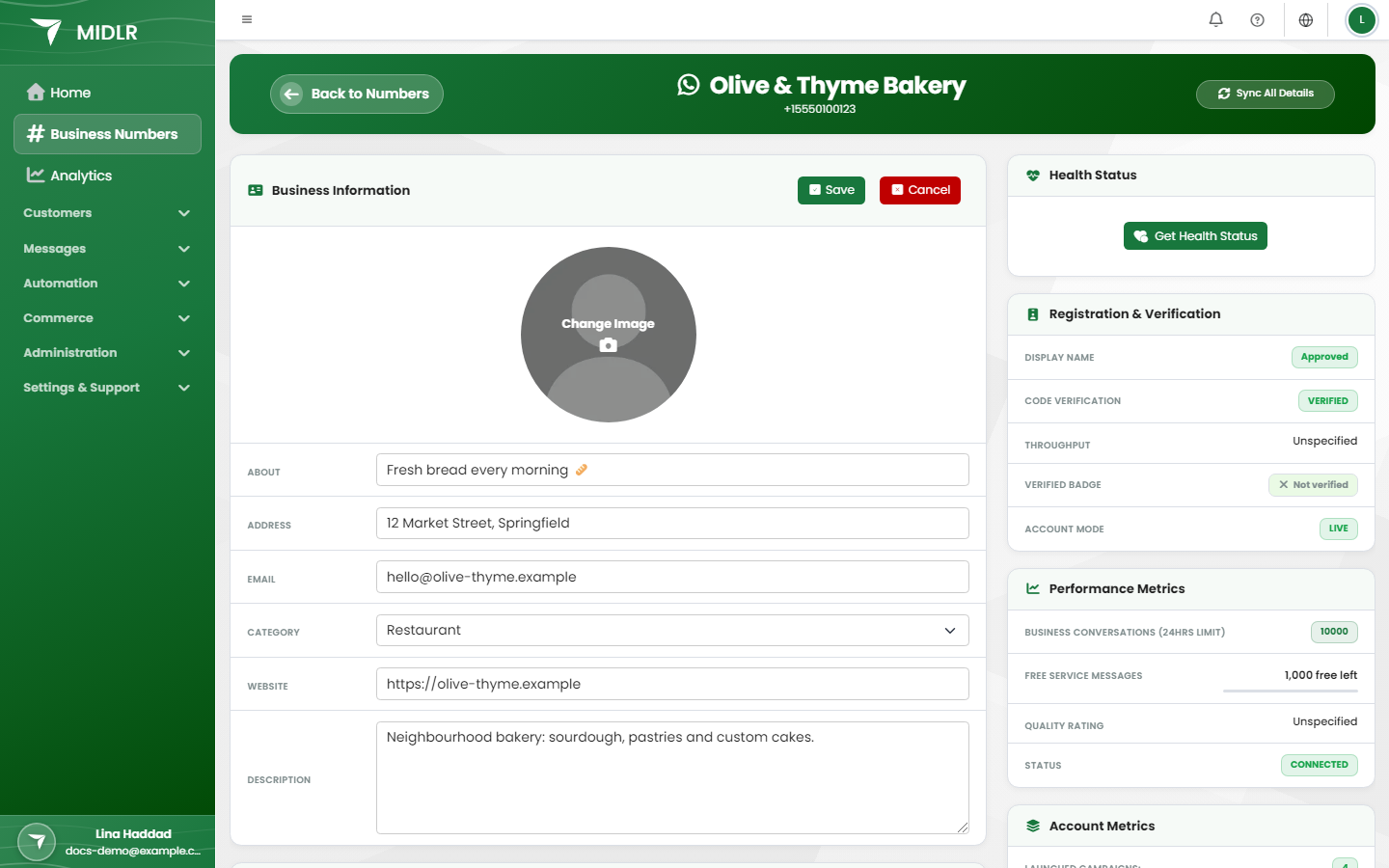
Edit your business profile
The Business Information card holds the profile customers see in WhatsApp.
Click Edit.
To change the profile picture, click the picture (Click to change image) and pick an image file. It is uploaded when you save.
Fill in the fields:
Field What to put Max length About A short line under your name, like a status. 100 characters Address Your shop or office address. 255 characters Email A contact email for customers. 128 characters Category The type of business. Pick one from Select category. — Website Your website address. 255 characters Description A longer description of your business. 512 characters Click Save. You see Profile updated successfully. Click Cancel to throw away your changes.
The changes are sent to WhatsApp, so customers see them on your profile.
TIP
A complete profile with a clear picture and description makes customers trust your messages more.
Your display name
The business name at the top of the page is the display name. You can't change it here. You request a new display name in WhatsApp Manager in Meta Business Manager. See Manage your numbers.
Sync the latest details from WhatsApp
If you changed something in Meta's WhatsApp Manager, or the page looks out of date, click Sync All Details at the top right. Midlr fetches the profile, calling settings and health status again. You see All details synced successfully, or Partial Sync if some parts failed. Click it again to retry.
Business Username
A username is a unique name for your number across all of WhatsApp, such as @yourbusiness. Customers can find you by searching for it exactly. Each phone number can have one username.
- If you have no username, the card shows No username set. Click Claim username.
- To change it, click Change.
WhatsApp may suggest usernames it has reserved for you. These have a higher chance of approval.
Username rules:
- 3 to 35 characters.
- Only English letters, digits, periods (
.) and underscores (_), with at least one letter. - It can't start or end with a period, have two periods in a row, start with "www", or end with a domain such as ".com".
- Capital letters don't matter, but periods and underscores do:
my.shopandmy_shopare different.
Things to know:
- A username doesn't hide your phone number.
- If you have an approved display name, customers see that first in chats. The username is mostly for search.
- If the name is already used by your Facebook Page or Instagram account, link this number to that account first, or the request is rejected.
- Your business needs a high enough messaging limit to be eligible for a username.
A requested username shows as Pending request until it's approved. Click Cancel request to withdraw it. To remove an active username, delete it from the card. Customers then can't find you by that name any more.
If the username is already used on another of your numbers, Midlr asks whether to Transfer it. It is then removed from the other number.
Conversational Components
These are shortcuts shown inside the WhatsApp chat with your business. Midlr reads them live from Meta, so changes made in WhatsApp Manager show here too.
- Ice Breakers: up to 4 tappable suggestions, such as "What are your opening hours?", shown before the customer sends their first message. 80 characters each. Click Add Ice Breaker.
- Commands: up to 30 commands customers see when they type "/" in the chat. Each needs a name and a description, and names must be unique. Click Add Command.
Click Edit, make your changes, then Save.
TIP
Ice breakers work well with a bot that answers each suggestion automatically.
QR Codes
A QR code lets customers start a chat with you by scanning it with their phone. You can add a Prefilled Message so the chat opens with text already typed.
Create a QR code
- On the QR Codes card, click New QR Code.
- Optionally, type a Prefilled Message (max 140 characters).
- Click Generate.
Each QR code shows its image, the WhatsApp Link, Code ID and Created date. You can:
- Download the QR image to print it.
- Copy the link to share it, for example on your website.
- Edit the prefilled message.
- Delete a QR code, or click Delete All. Deleted codes stop working in WhatsApp.
Your plan sets how many QR codes you can have. When you reach the limit, delete one to make a new one.
Calling Settings
If your business uses WhatsApp calls, this card controls how customers can call this number. You only see it if calls are available for your business and you have permission.
| Setting | Options |
|---|---|
| Calling Status | Enabled or Disabled. |
| Call Icon Visibility | Default (Show call button) or Disable All (Hide call button). |
| Callback Permission | Enabled or Disabled. |
| Call Recording | Enabled or Disabled. Can't be turned on when recording storage is full. |
| Call Hours | Disabled (24/7 availability) or Enabled (Custom hours). |
With custom hours, you choose a timezone, then set Weekly Operating Hours for each day: Open 24 hours, Closed all day, or up to two time slots. At least one day must be open. Under Holiday Schedule (optional), click Add Holiday for dates with different hours.
Meta only allows WhatsApp calling once your messaging limit is at least 2,000. If yours is lower, the card says so and shows your current limit. See Messaging limits & quality to raise it.
See Calls for making and taking calls.
Health Status
Click Get Health Status to ask Meta whether this number can send messages. The result says one of:
- Your account meets all the requirements.
- Your account meets the requirements, but has some limitations.
- Your account does not meet one or more requirements.
If there's a problem, Midlr lists the reasons for the Phone Number, WhatsApp Account or Business Portfolio, with Meta's error and a Possible Solution.
Registration & Verification
This card shows how the number is set up at Meta: the Display name status, Code verification, Throughput, Verified Badge (whether the number has Meta's verified badge), Account mode and when it was Onboarded.
If the display name certificate is missing or expired, a note explains that the number can't be used until you request a new display name in WhatsApp Manager. If a new display name needs Re-registration required, the deadline is shown here.
Performance Metrics and Account Metrics
- Performance Metrics: the messaging limit (Business Conversations (24hrs limit)), the Quality Rating and the number's Status. If the quality changed, you may see Why the quality rating changed. See Messaging limits & quality.
- Account Metrics: Launched campaigns and Interacted clients for this number.
Messaging Settings
Two switches decide what customers see while your team works on a chat:
- Show Typing Indicator: customers see "typing…" while you reply.
- Show Read Status: customers see blue ticks when you've read their message.
Commerce Settings
If you sell through WhatsApp, two switches control your catalog in chats with this number:
- Catalog visible in chat: customers can open your catalog from the chat.
- Shopping cart enabled: customers can add products to a cart and send you an order.
Assigned Users
Use this to limit who works on this number. Users you attach here only see chats and notifications for this number. If you leave it empty, everyone with chat access sees this number.
- Click Edit on the Assigned Users card.
- Pick users in Select users…
- Click Save.
Delete this number
Click Delete Number on the Business Information card. See Manage your numbers first: this can't be undone.