
Messaging limits & quality
Meta limits how many customers your business can start a conversation with each day, and rates the quality of your messages. This page explains both, shows where to see them in Midlr, and how to raise your limit.
For the background, see WhatsApp basics.
What the messaging limit is
Your messaging limit is the number of business-initiated conversations your business can start with different customers in a rolling 24-hour period. A business-initiated conversation is one you start by sending a template.
The limit belongs to your Business Portfolio, not to one number. It is shared by all your numbers.
| Counts toward the limit | Does not count |
|---|---|
| Marketing templates | Customer replies |
| Utility templates | Messages inside an already-open 24h conversation |
| Authentication templates | Conversations initiated by the customer |
Example: a shared limit
Say your portfolio limit is 100,000 customers per 24 hours, and you have three numbers:
| Number | Unique customers reached |
|---|---|
| A | 40,000 |
| B | 35,000 |
| C | 25,000 |
| Total | 100,000 |
Now the limit is used up. Number C can't message new customers, even though it only reached 25,000 itself. The shared total is what matters.
When you add a new number, it gets your portfolio's current limit straight away. It doesn't start again from the bottom.
Limit tiers
Meta's limits go up in steps:
| Tier | Customers per rolling 24 hours |
|---|---|
| 1 | 250 |
| 2 | 2,000 |
| 3 | 10,000 |
| 4 | 100,000 |
| 5 | Unlimited |
New businesses start at 250. If Midlr shows Not set, Meta hasn't given your portfolio a limit yet.
See your limit in Midlr
- In the sidebar, click Business Numbers.
- On the Account status card, the Messaging limit row shows your current limit.
- Click Messaging limits at the bottom of the card for details.
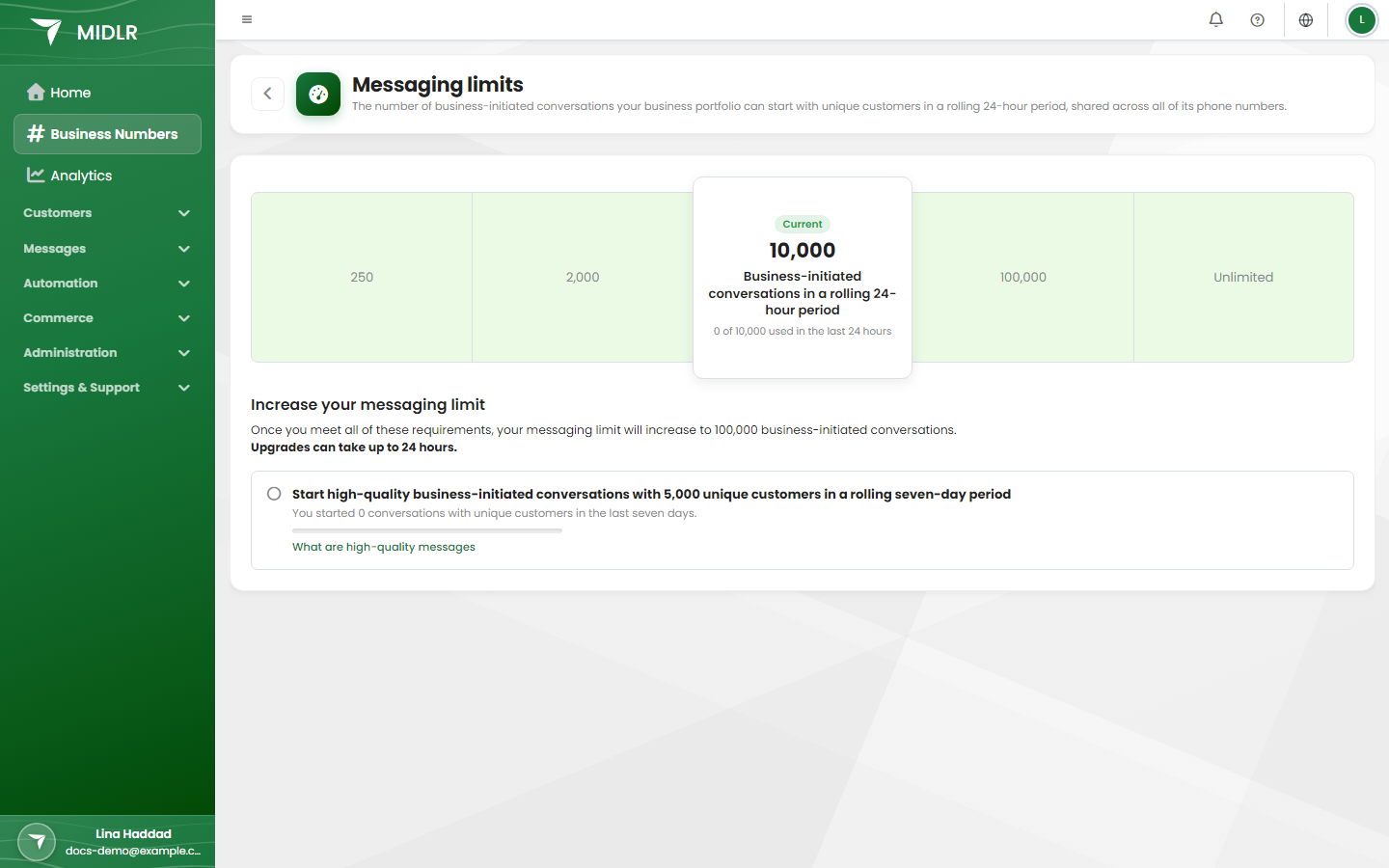
The Messaging limits page shows:
- The tiers, with your tier marked Current.
- How much you've used, for example 120 of 250 used in the last 24 hours.
- Increase your messaging limit: what you need to do to reach the next tier, and your progress.
If you're on the top tier, it says that there is no cap on business-initiated conversations.
Raise your limit
What you need depends on your current tier.
From 250 to 2,000: verify your business
Complete Business Verification with Meta. On the Messaging limits page, the requirement Verify your business has a Verify business link that opens Meta's Security Center for your portfolio. When you're verified, Midlr shows Your business is verified. Meta will raise your limit automatically.
From 2,000 upwards: use half your limit with good-quality messages
To move up a tier, start high-quality business-initiated conversations with at least half your current limit in unique customers within a rolling seven days. For example, at 2,000 you need to reach 1,000 different customers in seven days.
The Messaging limits page shows your progress with a bar, for example You started 640 conversations with unique customers in the last seven days. Click What are high-quality messages for tips.
Once you meet the requirement, Meta raises your limit automatically, usually within 6 hours.
TIP
Meta rewards steady, good-quality sending. Instead of one huge campaign, send regularly and use at least half of your limit. Only message people who opted in.
What happens when you reach your limit
You can still reply to customers who message you. You just can't start new conversations with more customers until the 24-hour window moves on.
When you launch a campaign, Midlr shows Remaining limit (24h). If you're sending to more contacts than your remaining limit, Midlr warns you, and sending pauses automatically when the limit is reached. You can send in batches or on a schedule to spread it out. See Campaigns. In the campaign screen, click How does the messaging limit work? for a quick explanation.
Forms need a higher limit
Meta only lets verified businesses with good-quality messages send Forms (WhatsApp Flows). Midlr checks this through your limit: below 2,000, the Forms page shows Limit Restrictive for Flows instead of your forms, and explains how to raise your limit. Verifying your business usually takes you to 2,000. Regular template messages still work.
Quality rating
Meta rates each number's message quality based on how customers react, mainly blocks and spam reports.
| Rating | What it means | What to do |
|---|---|---|
| High | Customers are happy with your messages. | Keep going. |
| Medium | Some customers are blocking or reporting you. | Review who you message, how often, and what you send. |
| Low | Many customers are blocking or reporting you. | Pause marketing, fix the cause, and only message people who expect it. |
Where to see it in Midlr:
- On each number card on the Business Numbers page (Quality).
- On the number's details page, in Performance Metrics (Quality Rating). If the rating changed recently, click Why the quality rating changed to see Meta's reasons.
Number status
Meta also gives each number a Status, shown next to the quality:
| Status | What it means |
|---|---|
| Connected | The number is working normally. |
| Flagged | The quality is low. Meta has flagged the number, and your limit can't go up while it's flagged. |
| Restricted | Meta has limited what this number can send. |
To check exactly what's wrong, open the number's details and click Get Health Status. See Business profile.
WARNING
Low quality can lead Meta to restrict your number or, in serious cases, disable your account. Message only customers who opted in, make your messages useful, and give an easy way to stop.