
Plans
Your plan decides which Midlr features your business can use and how many users, WhatsApp numbers and bot sessions you get. On the Plans page you start a free demo, pick a plan, switch between monthly and yearly billing, or cancel.
Before you start
- To see the Plans page you need permission to view the subscription. To change or cancel the plan you need permission to manage it. See Roles & permissions.
- If you can see the page but not change anything, you'll see a View only badge and the plan buttons say No Access. Ask an admin.
Open the Plans page
In the sidebar, open Administration and click Plans.
You can also get there from the plan card on your Home page: it shows your current plan and how many days are left, with a button such as View Plans, Upgrade Now or Resubscribe.
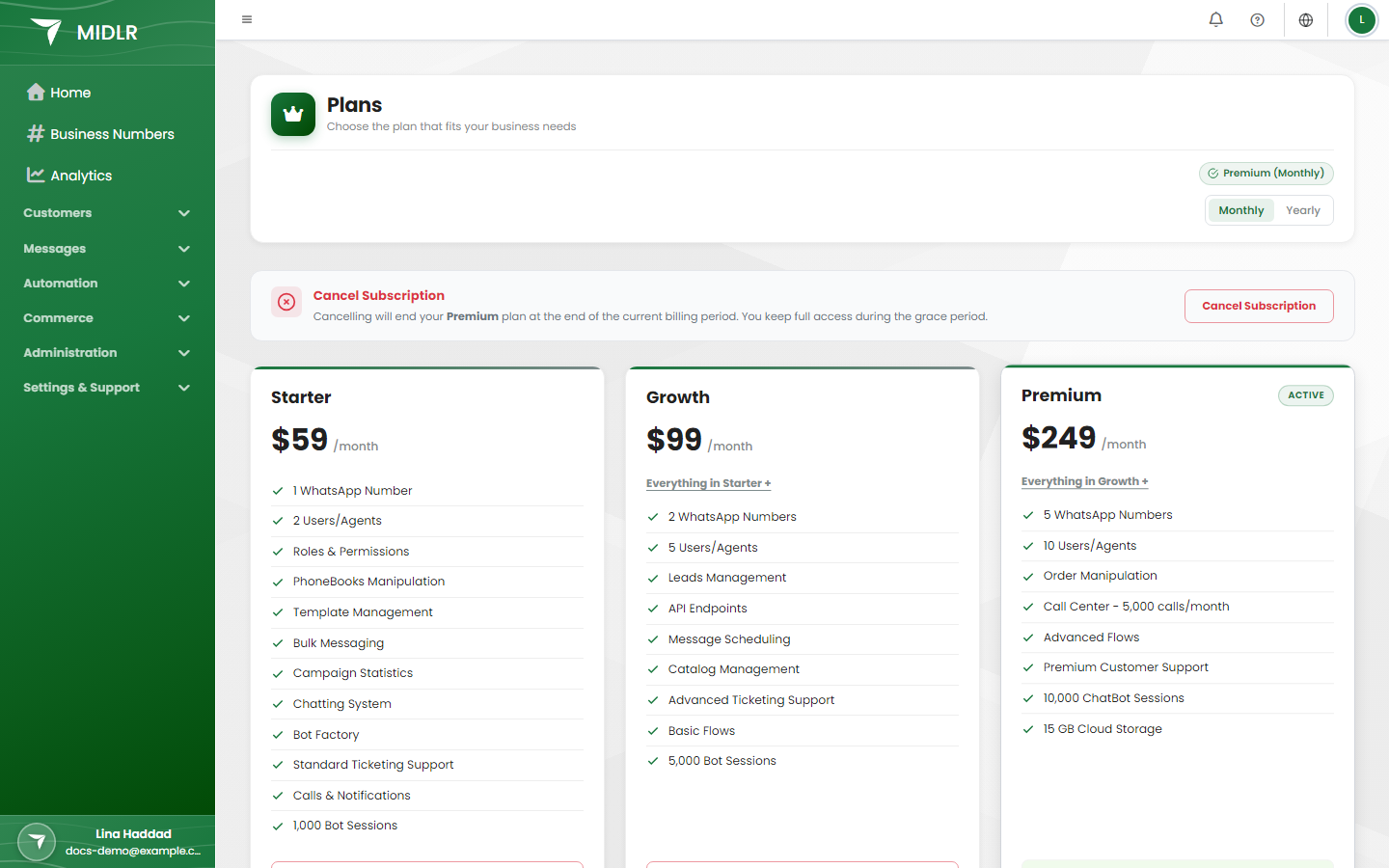
At the top of the page you see your current plan, for example "Growth (Monthly) — 12 days left", or No active plan.
Compare the plans
There are three plans: Starter, Growth and Premium. Each one includes everything in the plan below it, plus more. Each plan card lists what it includes, such as the number of WhatsApp numbers, users and bot sessions, and features like campaigns, leads, flows, catalogs, orders and the Call Center.
Prices are shown on the cards and can change, so always check the page for the current price.
Use the Monthly / Yearly switch at the top to see the price for each billing period.
TIP
If a menu item sends you to the Plans page when you click it, that feature isn't included in your current plan.
Try Midlr with the free demo
If your business has never used the demo, you'll see Try before you buy. with a Start Free Demo button.
- Click Start Free Demo.
- Read the summary and click Activate Free Demo.
The demo gives you Premium-level access for a set number of days, shown on the page. You don't need a credit card. While it runs, the page shows Free Demo Active and how many days you have left.
WARNING
The demo can only be used once per business. When it ends, you see Your free demo has expired. Choose a plan below to continue. Pick a plan before it runs out to keep your access.
Choose a plan
- Pick Monthly or Yearly.
- On the plan you want, click Select.
- Check the plan, billing period and price, then click Confirm & Continue.
- You're taken to a secure payment page (Stripe) to enter your card. When payment goes through, your plan is active.
Upgrade, downgrade or switch billing
When you already have a plan, the button on each card tells you what will happen:
| Button | What happens |
|---|---|
| Upgrade | Moves you to a bigger plan straight away. You're charged only for the difference for the rest of the current period. |
| Downgrade | Moves you to a smaller plan at the end of your current billing period. Until then you keep your current plan. |
| Switch to yearly | May use the unused part of your current month as credit. |
| Switch to monthly | Takes effect after your current yearly period ends. |
| Current Plan | The plan you already have. |
Click the button, check the details, and confirm.
WARNING
Before you downgrade, check that the smaller plan allows enough users and WhatsApp numbers for your team. You can see your user count on the Users page.
Cancel your plan
- Scroll to Cancel Subscription. It shows when your plan would normally renew.
- Click Cancel Subscription.
- Click Yes, Cancel Subscription.
Your plan doesn't stop straight away. It stops renewing, and you keep full access until the end of the period you already paid for. This is the grace period: the page shows Subscription Cancelled — Grace Period Active and the date your access ends.
No refunds are given for unused time.
Changed your mind?
During the grace period, click Resume Plan, then Yes, Resume Plan. Your plan carries on and renews as normal. You can also click Resubscribe on your plan's card.
What happens when a plan ends
When your plan or demo ends and you haven't picked a new one:
- Pages that need a plan take you to the Plans page instead.
- You can't add new users.
- Templates sent from your own systems through the API are refused.
- New WhatsApp messages are refused, so no new chats or contacts appear.
- Bots don't run and campaigns aren't sent.
- Your Home page shows No Active Plan.
Choose a plan to get your access back.
Special plans
- Custom plan: some businesses have a plan set up for them by Midlr. The page shows a Custom plan badge, your limits and the current period. To change or cancel it, contact support.
- Lifetime Access: if your account has lifetime access, every feature is Included and there's nothing to pay or renew.