
Manage your numbers
The Business Numbers page shows every WhatsApp business number your business has connected to Midlr, and the state of your WhatsApp Business Account. Use it to add numbers, check their health, and open each number's details.
Before you start
- You need permission to see business numbers. Adding, editing, deleting numbers and disconnecting the account each need their own permission. See Roles & permissions.
- To connect your first number, see Connect your WhatsApp number.
Open the page
In the sidebar, click Business Numbers.
The page title is the name of your WhatsApp Business Account. Under it you see:
- Phone Numbers: a card for each of your numbers, with a count next to the title.
- Account status: a card about your WhatsApp Business Account as a whole.
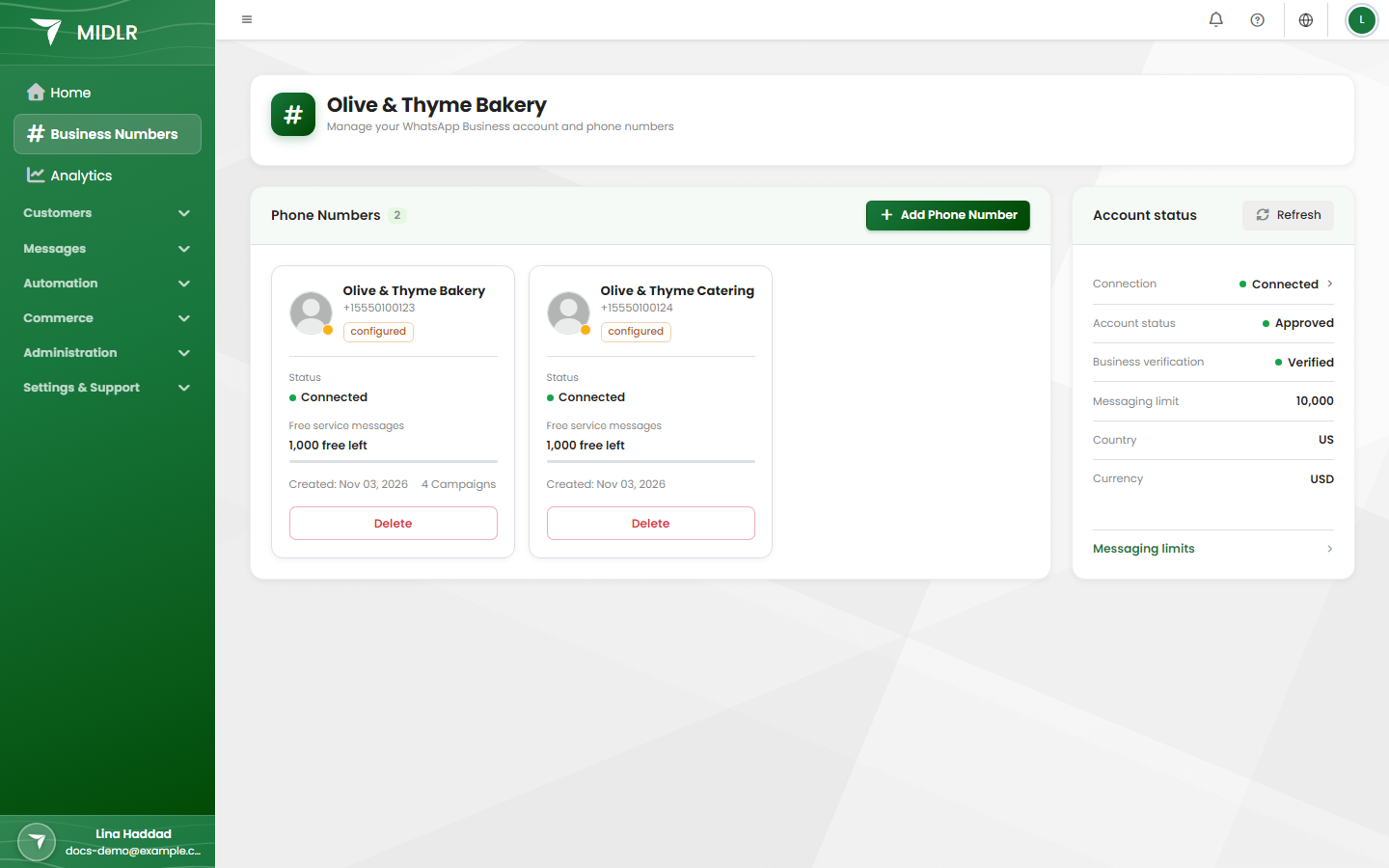
Read a number card
Each number has its own card.
| Part of the card | What it shows |
|---|---|
| Picture and name | The number's profile picture and display name (the business name customers see). Under it, the phone number, and the Business username if the number has one. |
| Status flag | Shown only when the number's setup was never finished. A number that connected successfully is Configured and shows no flag. A number with any other status (for example Unconfigured) can't send or receive messages: delete it and connect it again. |
| Quality | Meta's quality rating for this number: High, Medium or Low. See Messaging limits & quality. |
| Status | The number's connection status at Meta: Connected, Flagged or Restricted. |
| Free service messages | How many free non-template messages this number has left this month, for example 1,000 free left. When they're used up, it shows Renews and the date. Messages keep sending as usual after that: Meta charges for them, usually at the same price as a utility template. Midlr adds no fee to service messages. |
| Badges | Extra notes, only when they apply (see below). |
| Created: | The date the number was added. If it has sent campaigns, the number of Campaigns too. |
| Button | View Details opens the number's details. Delete is shown instead while the number is not Configured. |
Badges on a number card
| Badge | What it means |
|---|---|
| Re-registration needed | A new display name was approved, but it doesn't take effect until the number is registered again. See Display name below. |
| Name pending review | Meta is reviewing the number's display name. |
| Name declined | Meta rejected the display name. Request a new one in WhatsApp Manager. |
| Name expired / No name certificate | The display name is missing or expired. Request a new display name in WhatsApp Manager. |
| High throughput | Meta lets this number send messages faster than usual. |
| Official | The number is an Official Business Account (it has Meta's verified badge). |
If you see Access Restricted instead of View Details, you don't have permission to open number details. Ask your admin.
Read the Account status card
This card describes your WhatsApp Business Account, which holds all your numbers.
| Row | What it shows |
|---|---|
| Connection | Connected or Not Connected. Click it to open Connection Status. |
| Account status | The state of your WhatsApp Business Account at Meta. |
| Business verification | Whether Meta has verified your business: for example Verified, Not verified, Pending, More info needed or Rejected. If you're not verified, click Verify business (or View verification status if you've already applied) to open Meta's Security Center. |
| Account review | Meta's review of your account: Approved, Pending or Rejected. |
| Messaging limit | How many customers your business can start conversations with in 24 hours. |
| Country and Currency | The country and billing currency of your account at Meta. |
At the bottom, click Messaging limits for the full picture. See Messaging limits & quality.
Refresh account details
Midlr doesn't reload these details from Meta every time you open the page. To get the latest, click Refresh at the top of the card. You see Account details refreshed when it's done.
Warnings at the top of the page
If Meta takes action against your account, a warning appears at the top of the page:
- This WhatsApp account is scheduled to be disabled on a date, or This WhatsApp account has been disabled. All numbers in the account are affected.
- A policy violation has been recorded against this account.
WARNING
Act on these warnings straight away. Review the notice in WhatsApp Manager (in Meta Business Manager) and appeal there if you think it's a mistake. Midlr can't lift Meta's restrictions.
Add a number
Click Add Phone Number above your number cards, then follow Connect your WhatsApp number (choose path B).
If the button is greyed out, hover over it to see why:
- Max numbers reached: your plan's number limit is reached. See Plans.
- Missing credentials: your account isn't fully connected. Check Connection on the Account status card.
Open a number's details
Click View Details on a number card. This opens the number's own page, where you edit the business profile, username, QR codes and more. See Business profile.
Display name
The display name is the business name customers see in WhatsApp. Meta reviews every display name.
You request or change a display name in WhatsApp Manager in Meta Business Manager, not in Midlr. Midlr shows its status on the number card and on the number's details page.
After Meta approves a new name, the number must be registered again within 14 days for the name to take effect. Midlr usually does this for you in the background. If Midlr doesn't have the number's two-step verification PIN, it can't, and the details page asks you to re-register the number from WhatsApp Manager before the deadline. If the 14 days pass, you have to submit the name for review again.
Delete a number
Deleting removes the number from Midlr only. The number stays in your WhatsApp Business Account at Meta, and customers can still message it, but those messages no longer reach Midlr. To remove the number from your account at Meta too, do it in WhatsApp Manager.
- Open the number with View Details, then click Delete Number. (For a number that isn't Configured yet, click Delete on its card.)
- Confirm with Yes, delete it.
WARNING
This can't be undone. The number's chat history, call history and scheduled messages are deleted from Midlr with it. Midlr won't delete a number that is linked to existing leads. You see Cannot delete this phone number because it is linked to existing leads. Move or remove those leads first. See Leads.
Disconnect your WhatsApp account
Disconnecting unlinks your whole WhatsApp Business Account from Midlr. You might do this to connect a different account, or to move a number from the WhatsApp Business app (see path C).
- Delete all your numbers first (see above). Midlr can't disconnect while numbers are still connected.
- On the Account status card, click Connection.
- In Connection Status, click Disconnect Account.
- Read the list of what happens, then click Disconnect Account again to confirm. Click Back to cancel.
What happens when you disconnect:
- Your account is disconnected from Midlr, but not from the WhatsApp Business Platform. Nothing changes in your Meta Business Manager.
- Your contacts stay in Midlr, but you can't send or receive messages until you reconnect.
- Your templates stay in Midlr, but you can only use them again if you reconnect the same WhatsApp account.
- The link to your Business Portfolio and catalog is removed, so you can reconnect with any portfolio afterwards.
- Midlr is still listed as a connected app in your Business Manager. To remove its access completely, go to Business Settings > Integrations > Connected apps in Meta Business Manager.